AI Phone Translator is an all-in-one real-time translation app that helps you communicate across 150+ languages and accents. It can translate phone calls, video calls, in-person conversations, photos, text, audio, videos, and on-screen content, making it easy to talk with people who speak different languages.
In this guide, you’ll learn how to set up AI Phone and use its key features, including phone call translation, video call translation, screen translation, and more.
Quick Summary
- Use phone call translation for translated phone conversations.
- Use video call translation for translated video or voice calls.
- Use face-to-face voice translation for in-person conversations.
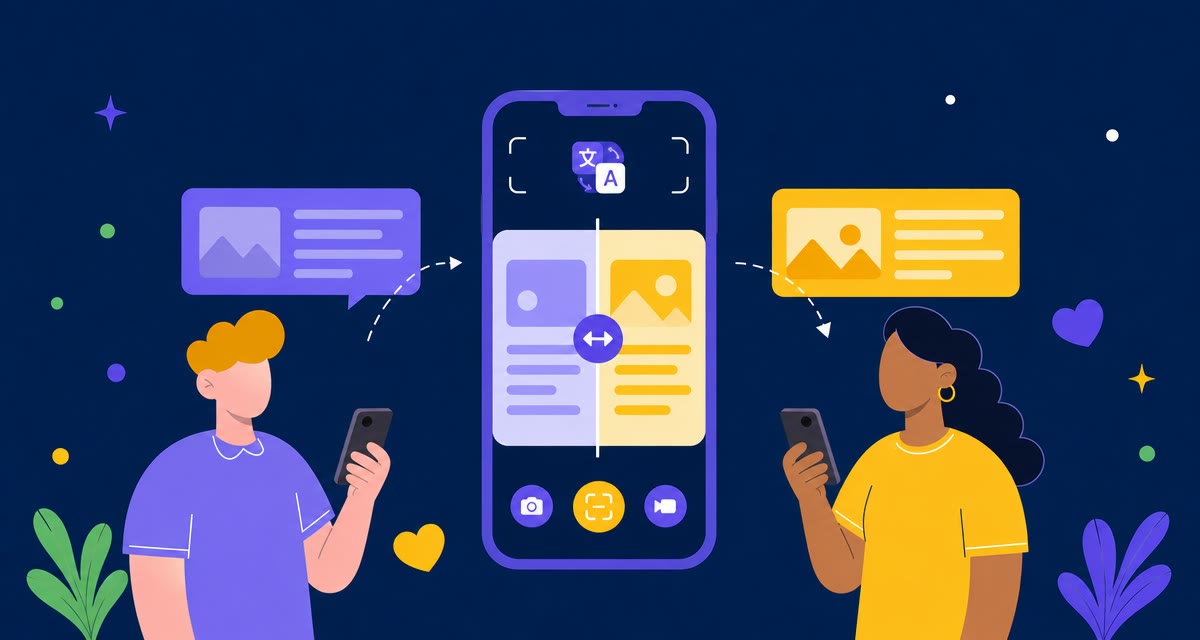
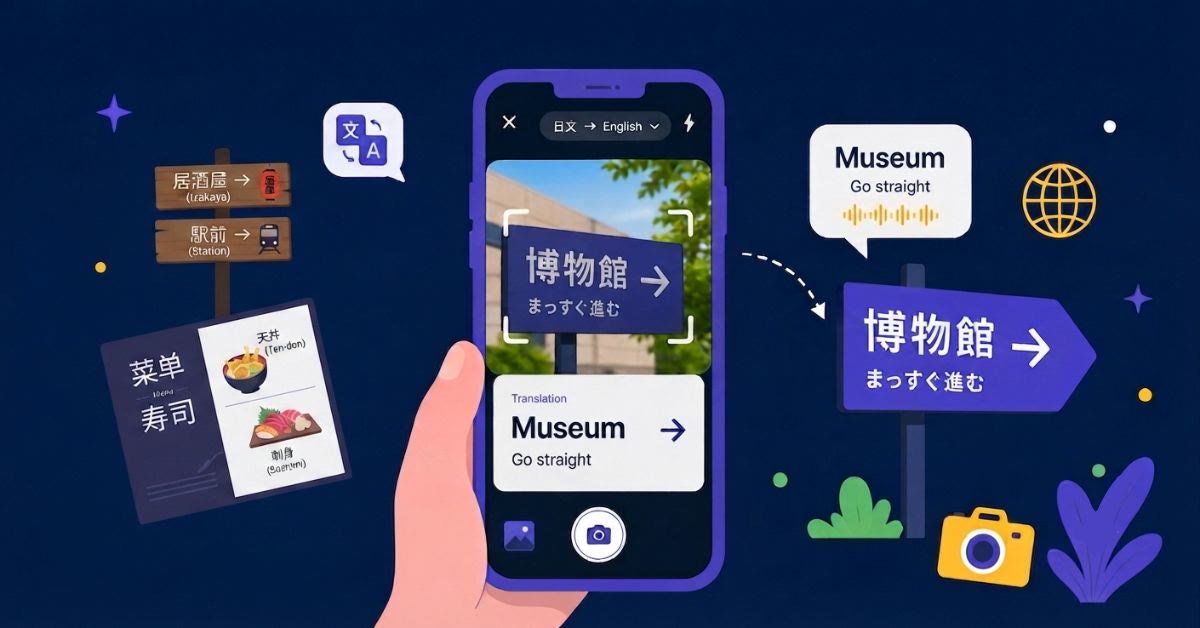
- Use photo translation for text inside photos and camera captures.
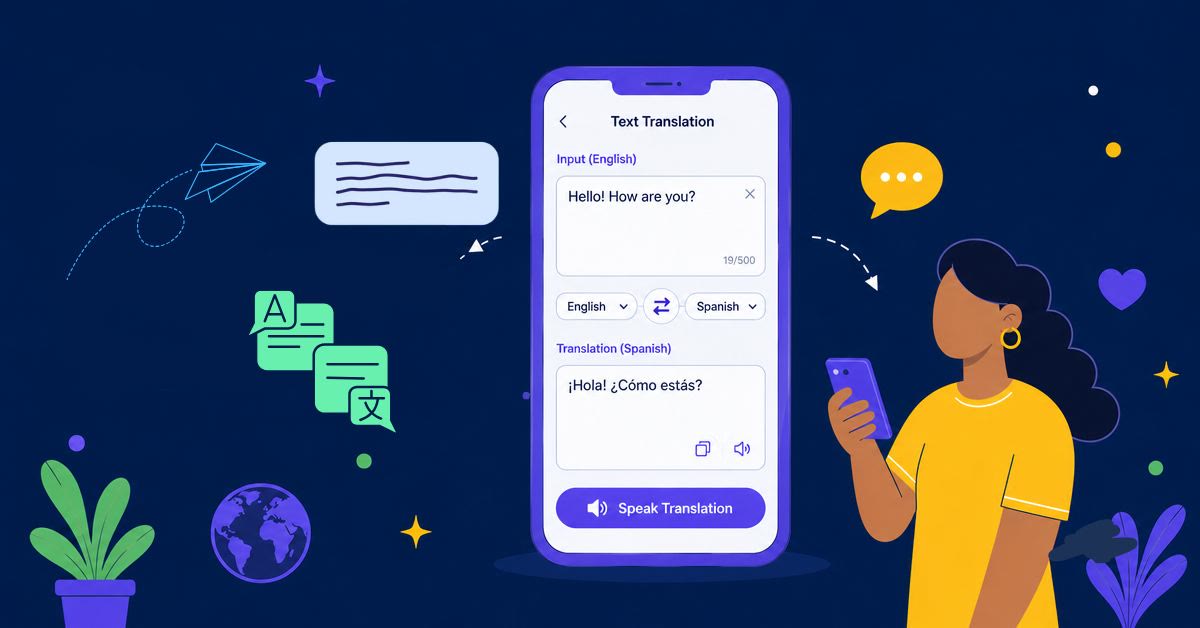
- Use text translation for text that you type or paste.
- Use Screen Translation for text displayed inside apps, games, chats, and websites.
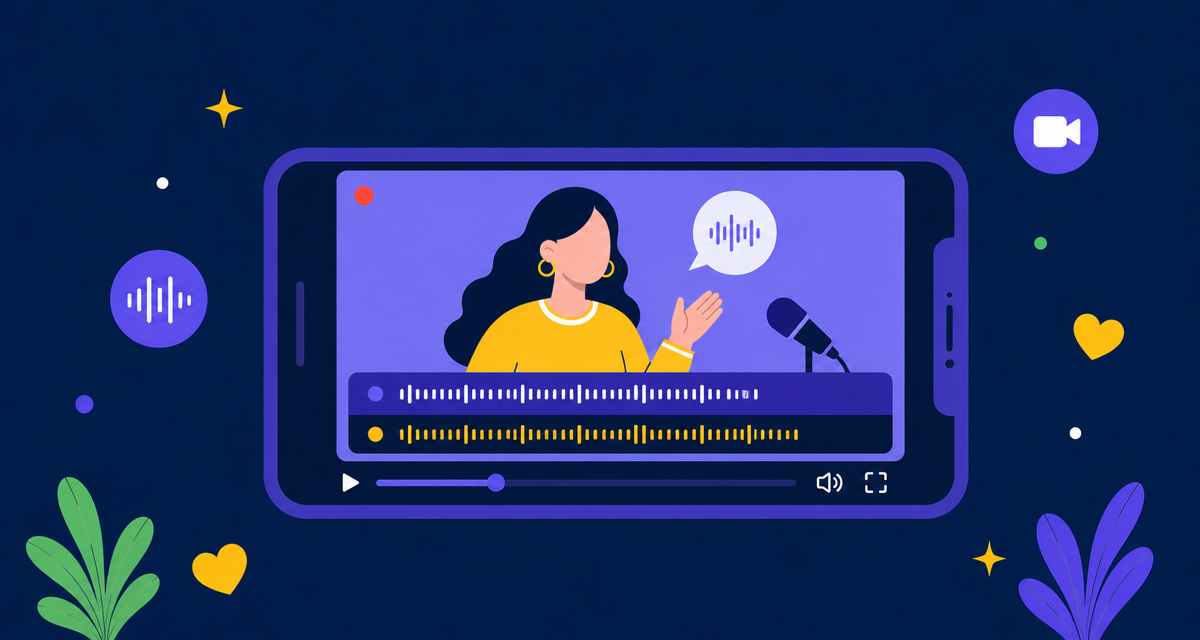
- Use Audio, Video, and Stream Translation for videos, podcasts, lectures, and live streams.
- How to Download and Install AI Phone
- How to Use Phone Call Translation
- How to Use Video Call Translation
- How to Use Face-to-Face Voice Translation
- How to Use Photo and Camera Translation
- How to Use Text Translation
- How to Use Video/Audio Translation
- How to Use Screen Translation
- Review Translation History
- Manage AI Phone App Settings
- Manage Your AI Phone Second Number
- Use Smart Text Reply in Inbox
- FAQs
How to Download and Install AI Phone
AI Phone is available on both iOS and Android now.
- iOS: Go to the App Store app. Tap the download button to start downloading and installing.
- Android: Visit the Google Play Store. Tap the “Install” button to start downloading and installing.
How to Use Phone Call Translation
Use phone call translation when you need to call someone who speaks another language.
To use the phone call translation feature, you need to configure your caller ID first. You can either link your own number or get a second number via AI Phone, depending on how you want to make calls.
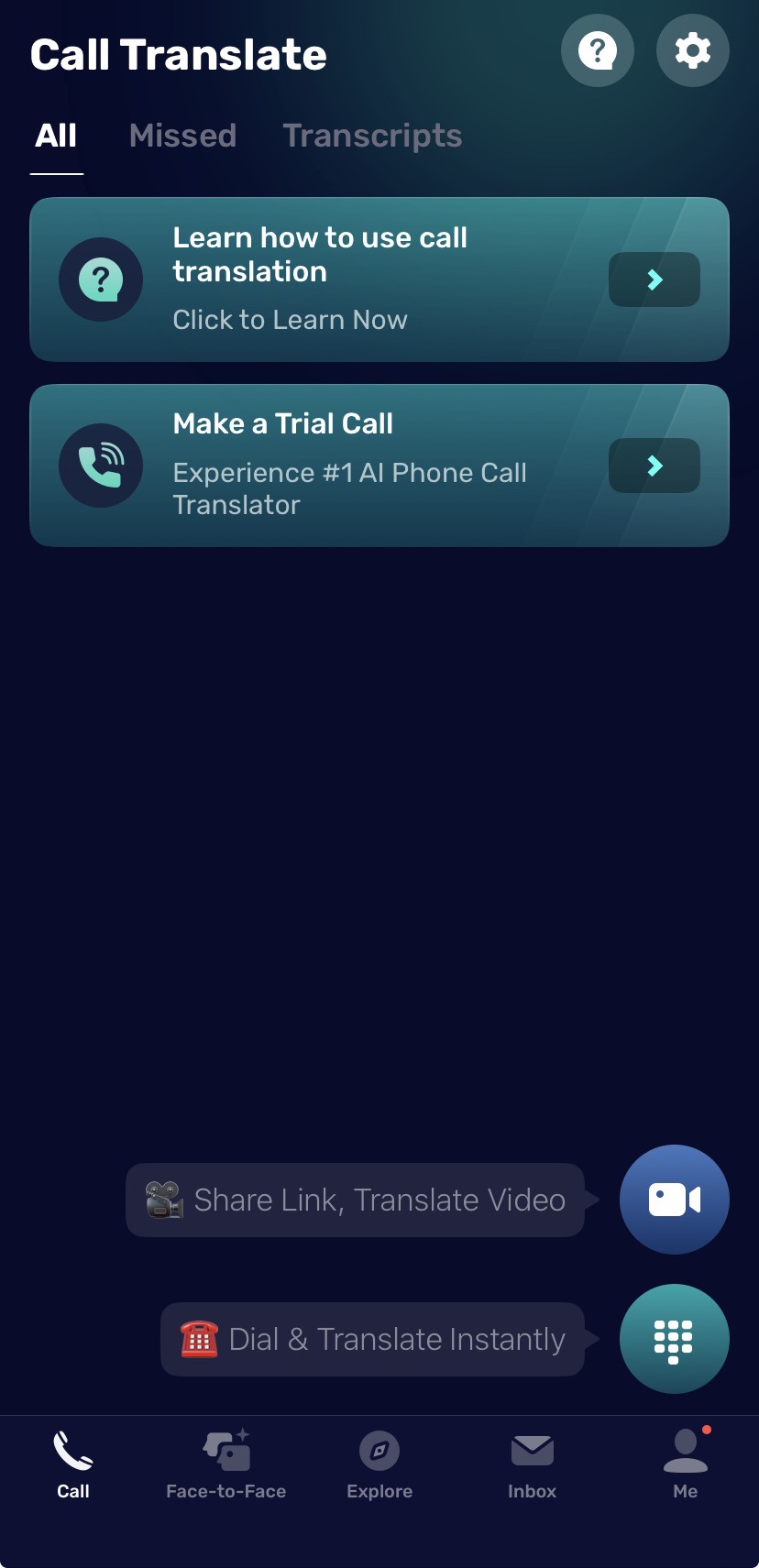
- Open AI Phone.
- Tap Call at the bottom.
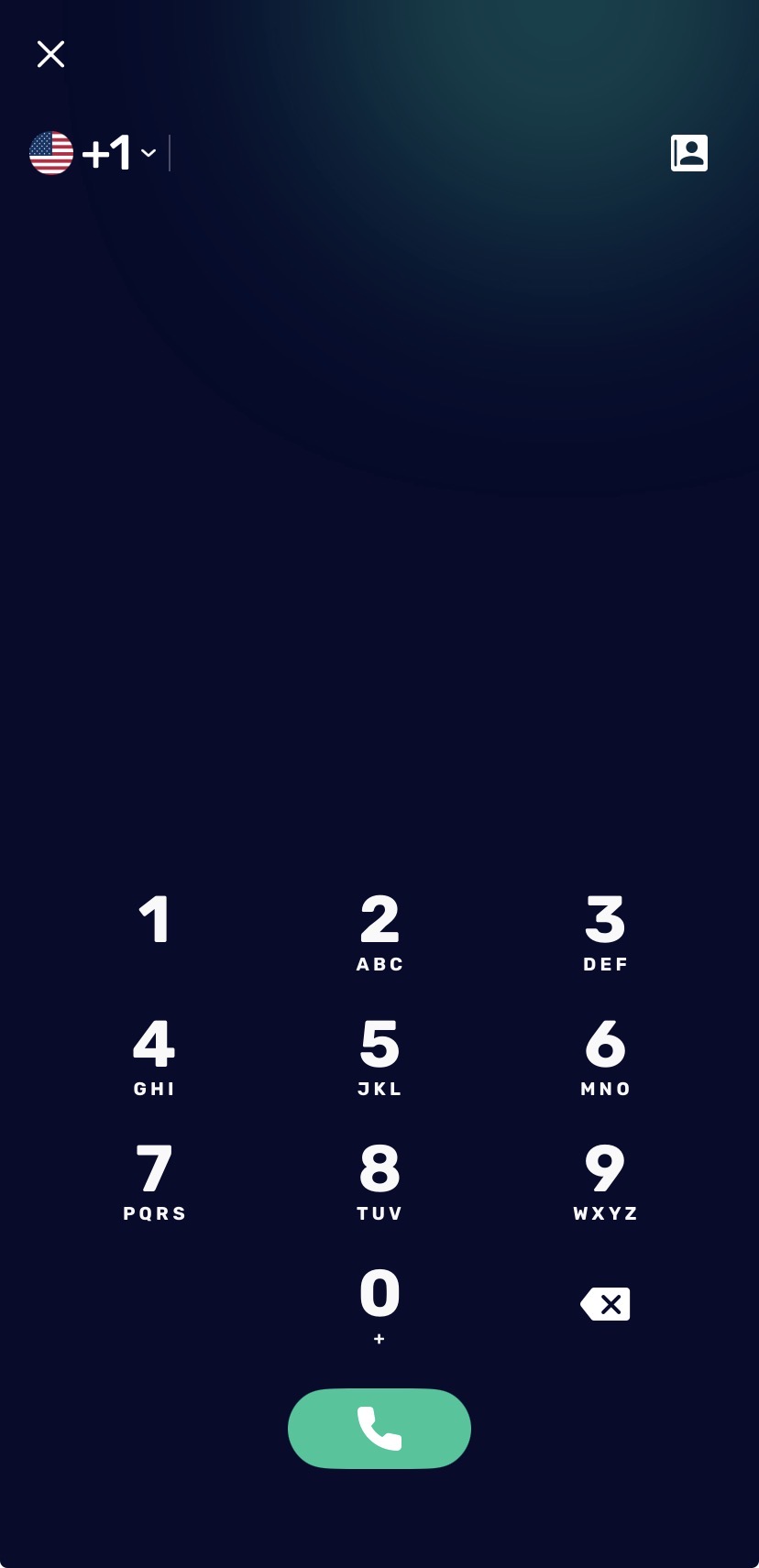
- Tap the ⠿ Dial Pad button in the bottom-right corner.
- Dial the phone number you want to call or select a number from your contacts.
- Then click the Call button at the bottom.
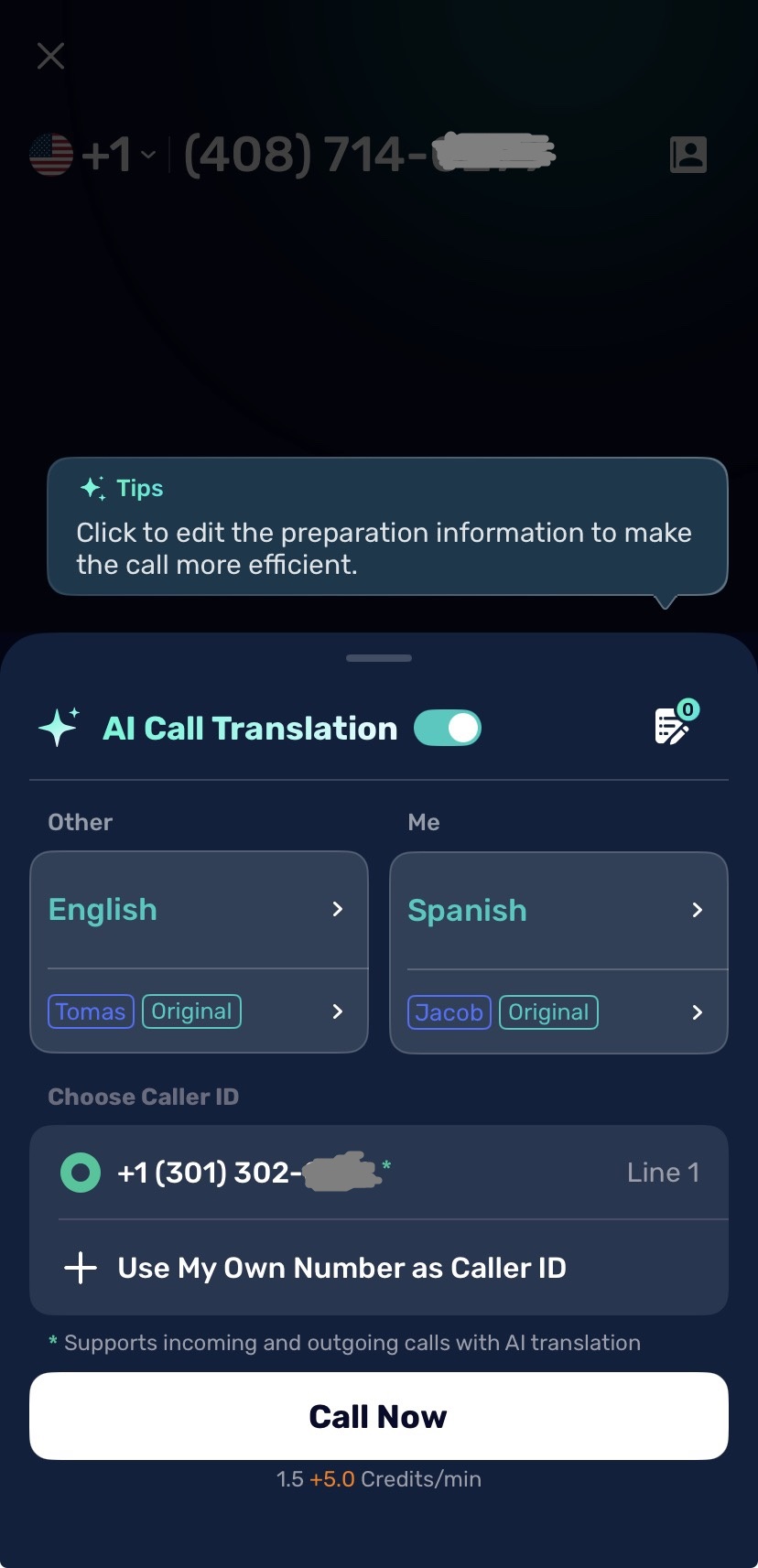
- The language and voice settings screen will appear:
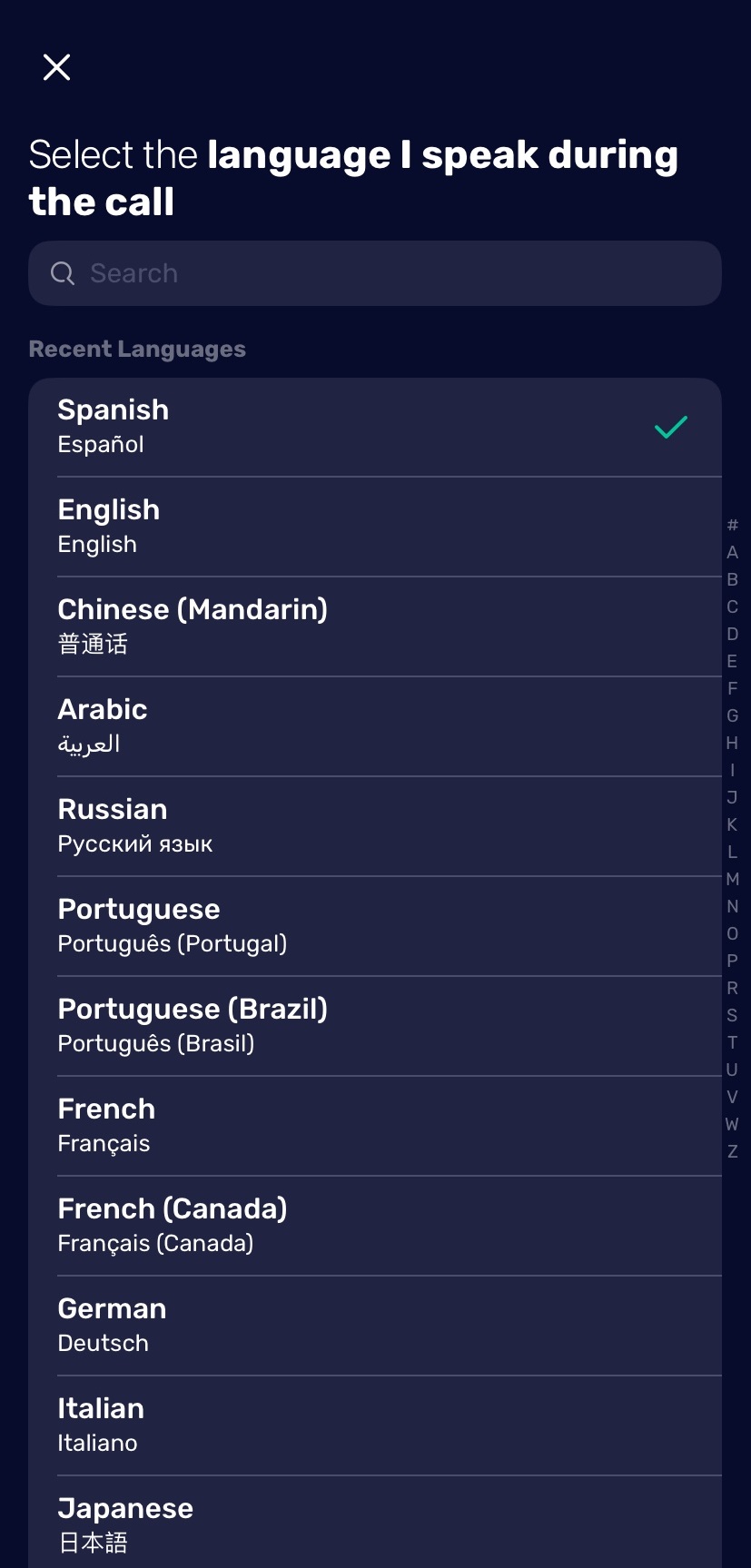
- Your language (Me): select your language and translation voice; choose whether to mute your original voice.
- Recipient’s language (Other): select their language and translation voice; choose whether to mute their original voice or play their translation voice.
- Select the caller ID you want to call with.
- Tap Call Now to start your translated phone call.
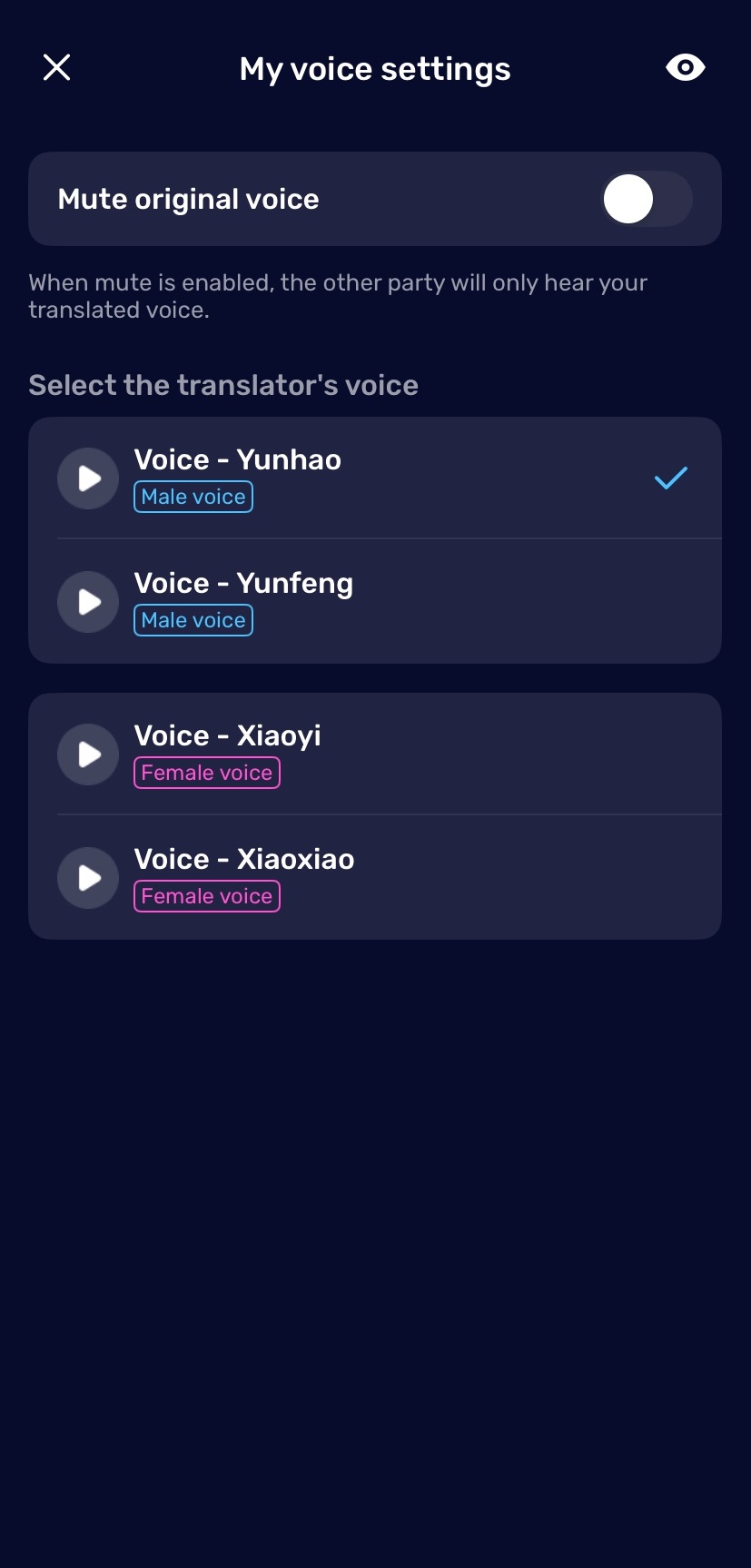
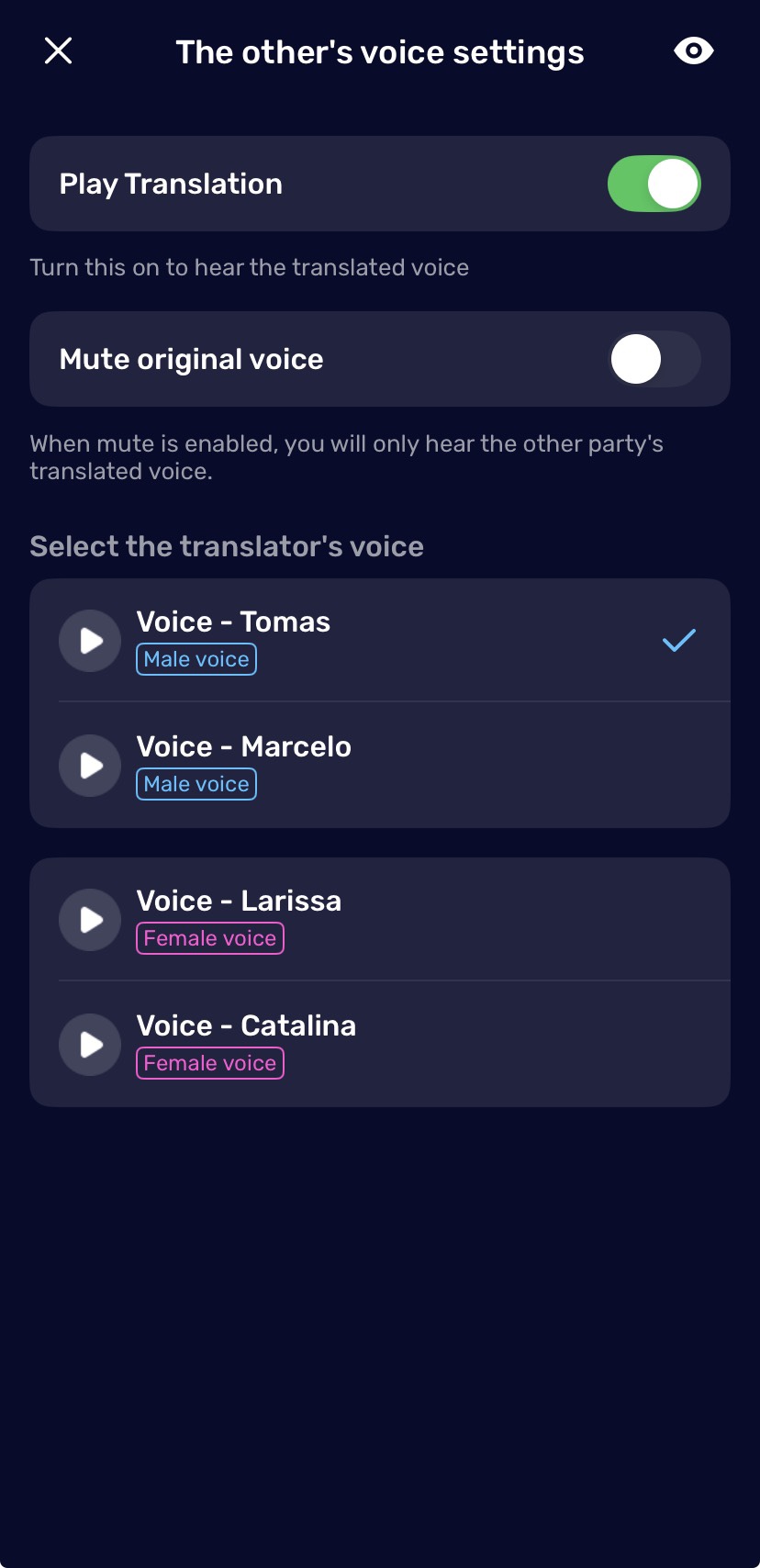
Note: The other person does not need to install AI Phone. They can hear your translated voice. If you do not mute your original voice, they can your original voice too. For the complete phone call translation setup, follow the dedicated guide.
How to Use Video Call Translation
AI Phone Translator allows you to translate voice and video calls in real time across popular social and communication apps like WhatsApp, WeChat, LINE, and Telegram.
Take WhatsApp as example:
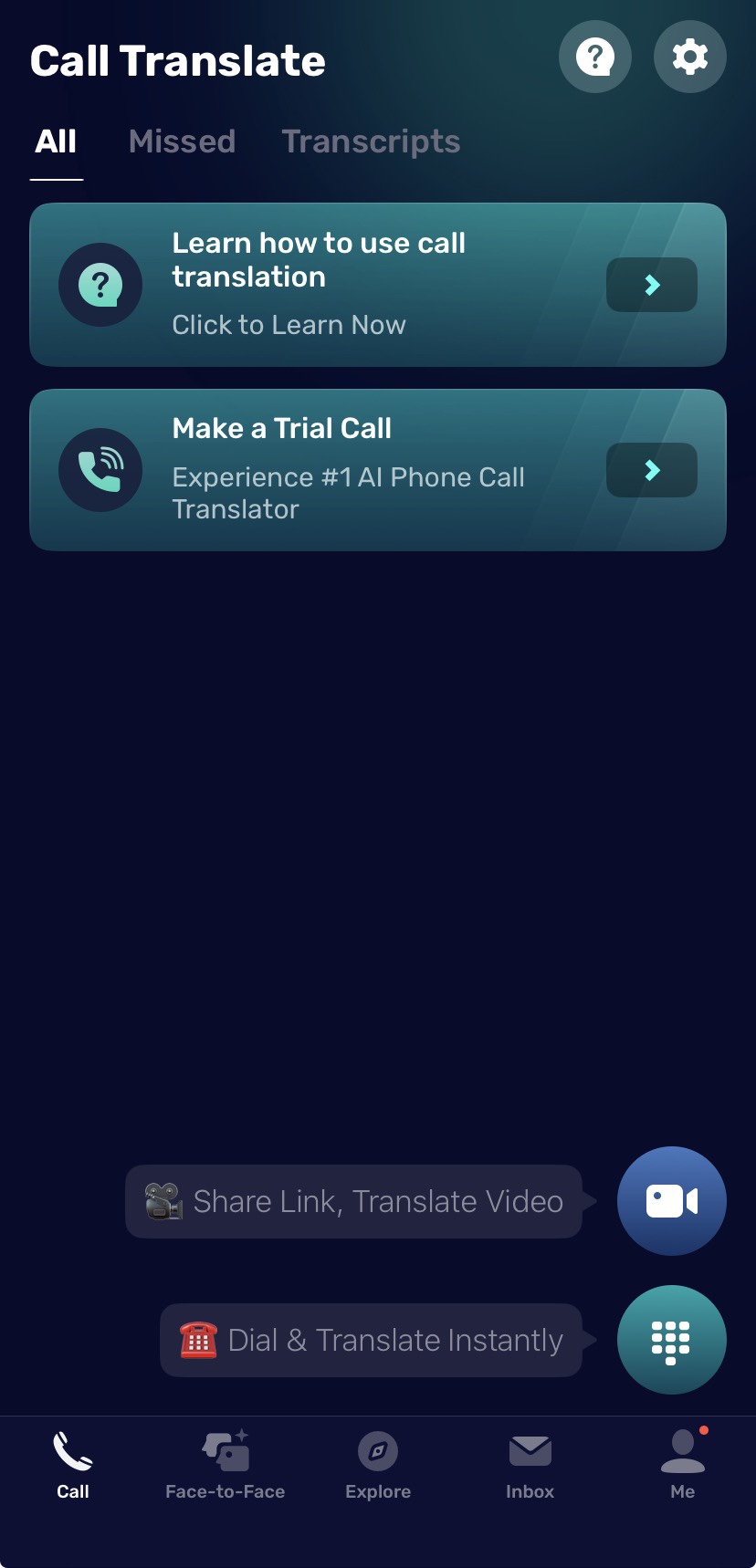
- Open the app and tap Call at the bottom.
- Tap the Video Call icon.
- Select the app you want to use for the call: WhatsApp, WeChat or Other Apps.
- After selecting the app, you will enter the language settings screen.
- Set your language and the other person’s language.
- Choose the call type: Video Call or Voice Call.
- Tap Call Now.
- AI Phone will generate a unique call link.
- Share this link with the person you want to talk to.
- Once the other person opens the link, the call starts automatically.
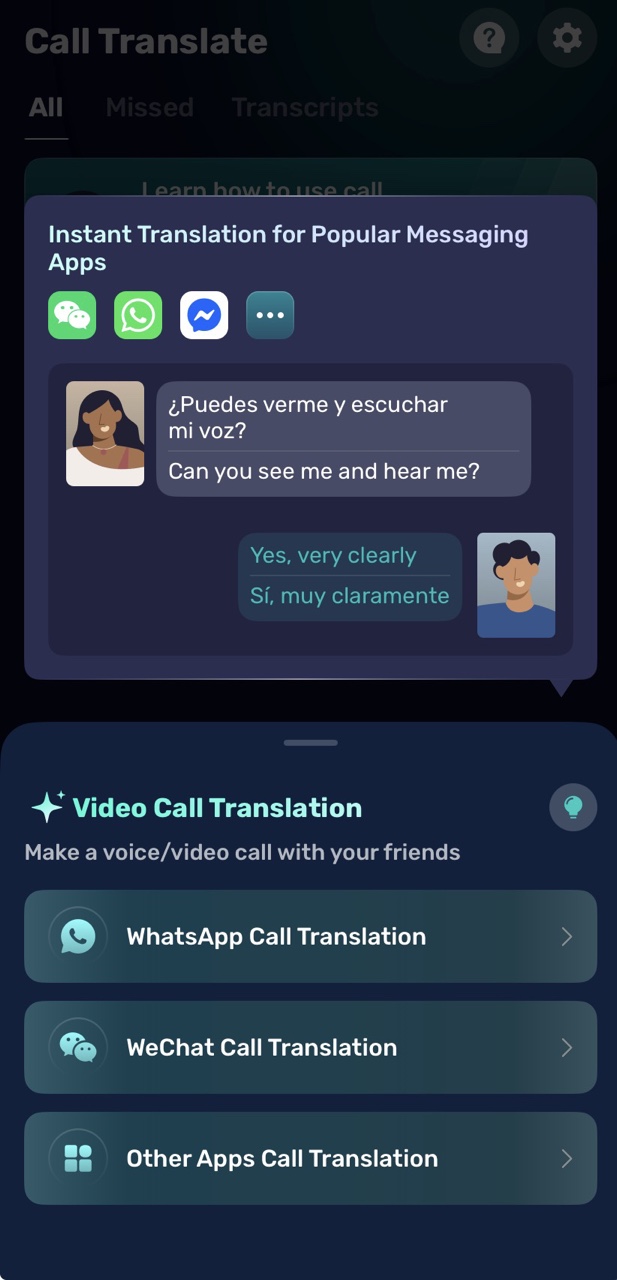
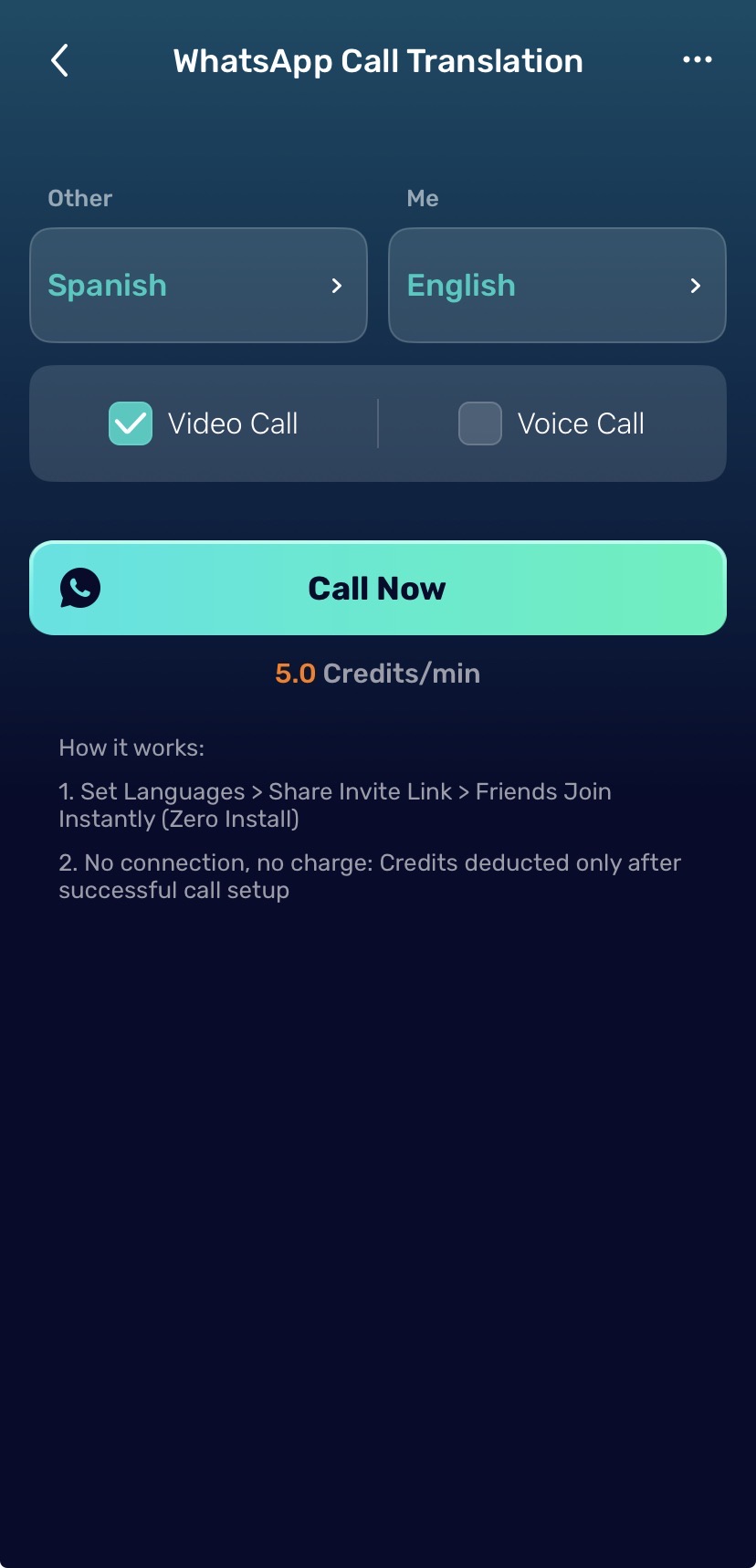
Note: The other person does not need to install AI Phone. Bilingual subtitles will appear in real time on both sides of the call, allowing smooth communication. For detailed instructions, see How to Translate Video Calls with AI Phone.
How to Use Face-to-Face Voice Translation
AI Phone Translator allows you to translate in-person conversations in real time. This feature has two modes:
- Listening Mode – ideal for lectures, classes, seminars, or presentations.
- Talk Mode – ideal for live, two-way face-to-face conversations.
Step-by-Step Guide:
- Open AI Phone.
- Tap Face-to-Face.
- Choose Listening Mode when you mainly need to understand someone.
- Choose Talk Mode when both people need to speak and respond.
- Select the language settings.
- Start speaking or press the talk button when prompted.
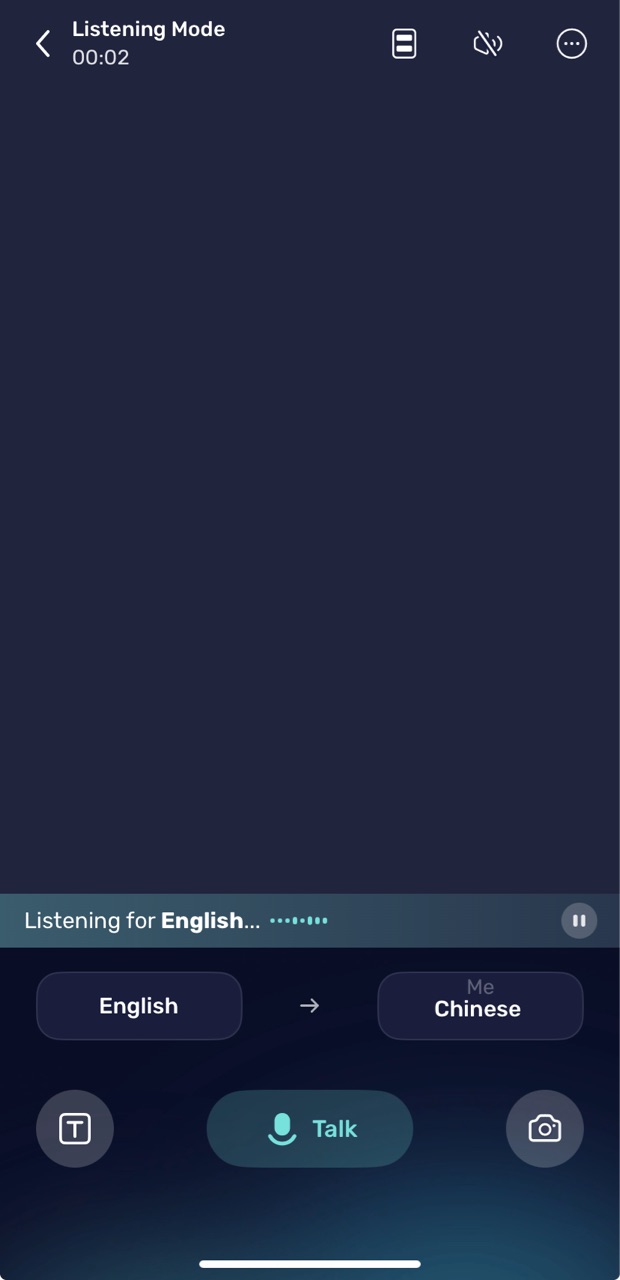
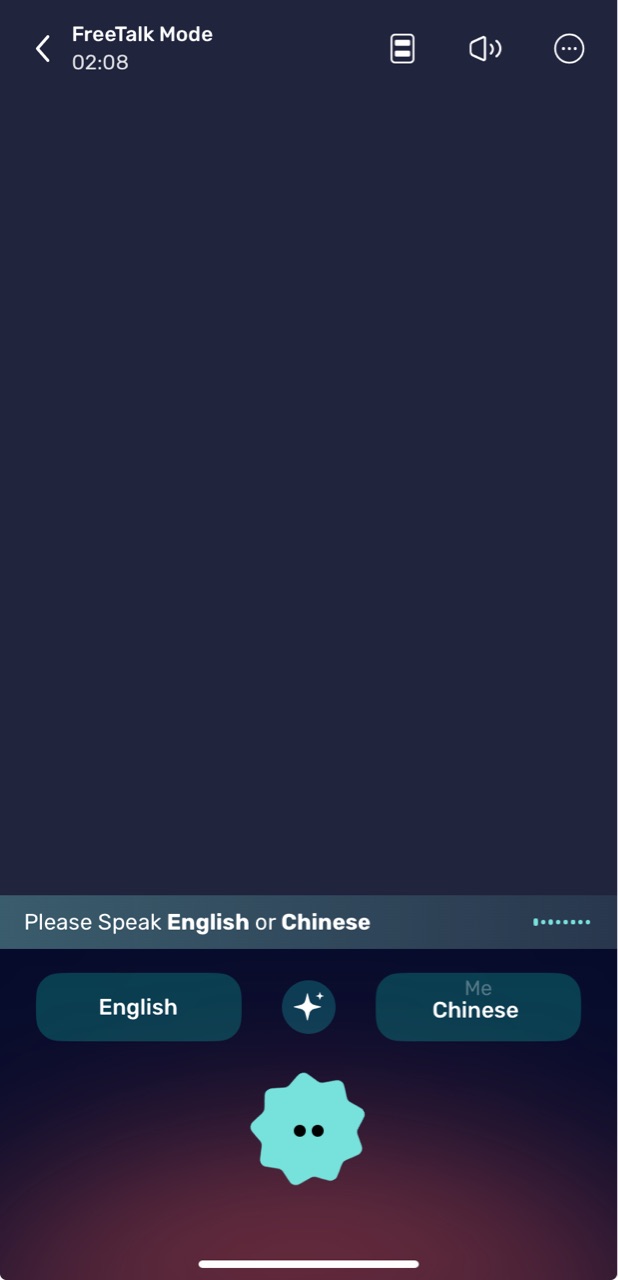
Follow the Face-to-Face Voice Translation setup guide for detailed instructions.
How to Use Photo and Camera Translation
AI Phone Translator allows you to translate text from photos or live camera capture in real time. This is useful for menus, signs, documents, packaging, slides, and more.
- Tap “Face-to-Face”
- Tap the camera button on the right side to enter the image translation interface.
- At the bottom of the screen, select the source language (the language in the image) and the target language (the language you want the text translated into).
- Tap “Photos” to upload an image or use your camera to capture new content. The text will be automatically detected and translated.
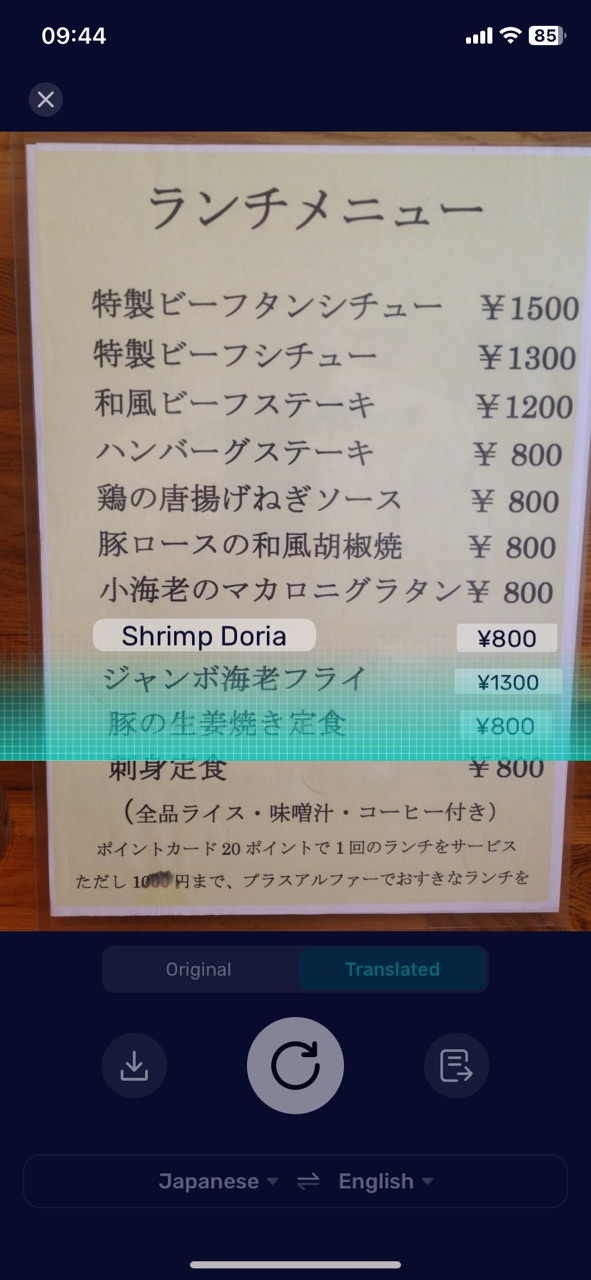
Note: Photo Translation supports offline use for supported languages. See the Photo Translation setup guide for the complete process.
How to Use Text Translation
- Tap “Face-to-Face”
- Tap the T button on the left.
- Enter or paste the text to translate.
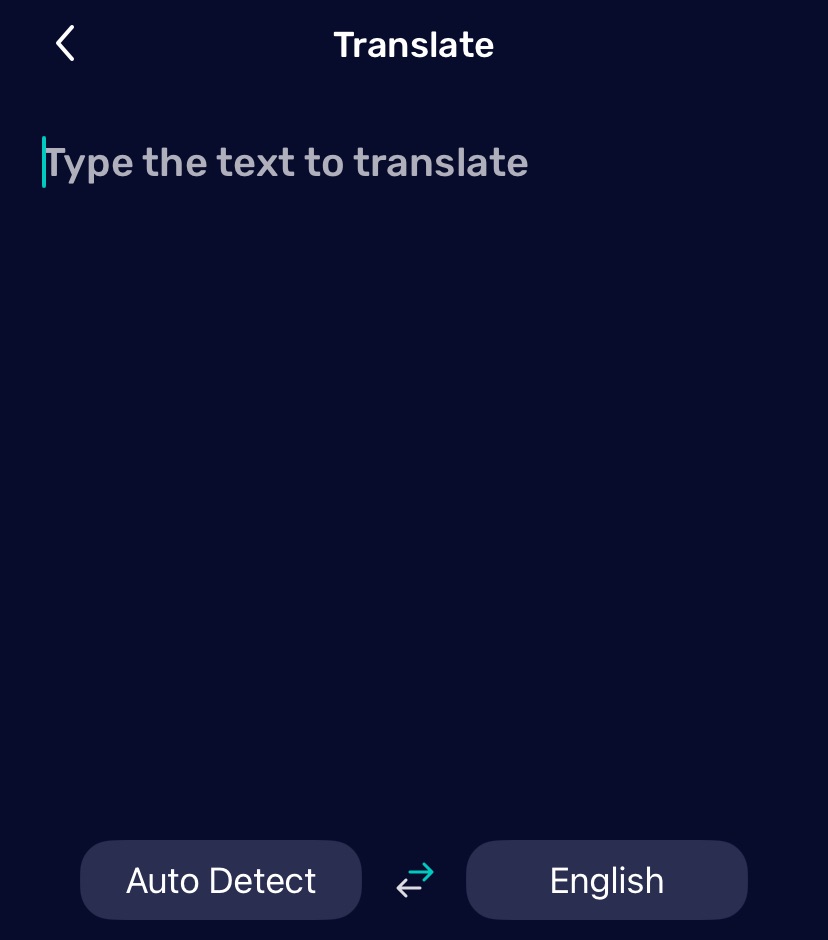
Note: Text Translation supports offline use for supported languages. For detailed instructions, follow the Text Translation setup guide.
How to Use Video/Audio Translation
This feature translates audio from videos, podcasts, and live streams in real time.
- Open the Explore tab.
- Tap Instant Audio/Stream Translation.
- Select your source and target languages.
- Tap the Start button.
- Minimize the app and play the audio or video you want to translate.
- The app will automatically detect the audio and translate it in real time to your selected language.
Follow this setup guide for the full setup process.
How to Use Screen Translation
Instantly translate anything on your screen, like websites, IM chats, and games.
- Open the Explore tab and tap Screen Translation.
- Click Install “AI Phone Screen Translation” Shortcut.
- Configure the trigger in your phone:
- Go to Settings → Accessibility → Touch → Back Tap
- Select Double Tap → AI Phone Screen Translation
- Once set up, simply double-tap the back of your phone to translate your screen anytime.
Follow the Screen Translation setup guide for the full setup process.
Review Translation History
Review Phone Call and Video Call History
- Open AI Phone.
- Tap Call.
- Browse your phone call and video call history.
- Tap the text icon on the right side of the call you want to review.
You can view the available call transcript and translation details from the call history screen.
Review Other Translation History
- Open Explore.
- Tap the History icon or the three-dot menu in the top-right corner.
- Select the translation type you want to review.
Manage AI Phone App Settings
After setting up the translation features, customize the app from Me > App Setting.
Change the App Language
- Open AI Phone.
- Tap Me.
- Tap App Setting.
- Tap App Language.
- Select the language you want to use in AI Phone.
Set Up a Text Message Signature
- Open AI Phone.
- Tap Me.
- Tap App Setting.
- Tap Text Message Signature.
- Select the phone number where you want to use a signature.
- Enter or edit the signature.
- Tap Save.
Set Up Auto-Reply to Texts
Auto-Reply to Texts can respond to incoming messages when you are unavailable.
- Open AI Phone.
- Tap Me.
- Tap App Setting.
- Tap Auto-Reply to Texts.
- Turn on Auto-Reply to Texts.
- Set up the Generic Response.
- Add message types such as Specify Business Hours Message or Place An Order Message.
- Tap Confirm.
AI Phone can choose the most relevant message template based on the context of an incoming text.
Manage Notification Settings
- Open AI Phone.
- Tap Me.
- Tap App Setting.
- Tap Notification Settings.
- Turn the available options on or off.
You can manage Show Message Preview, Alert Notification, Alert Sound, and Incoming Ringtone.
Manage Your AI Phone Second Number
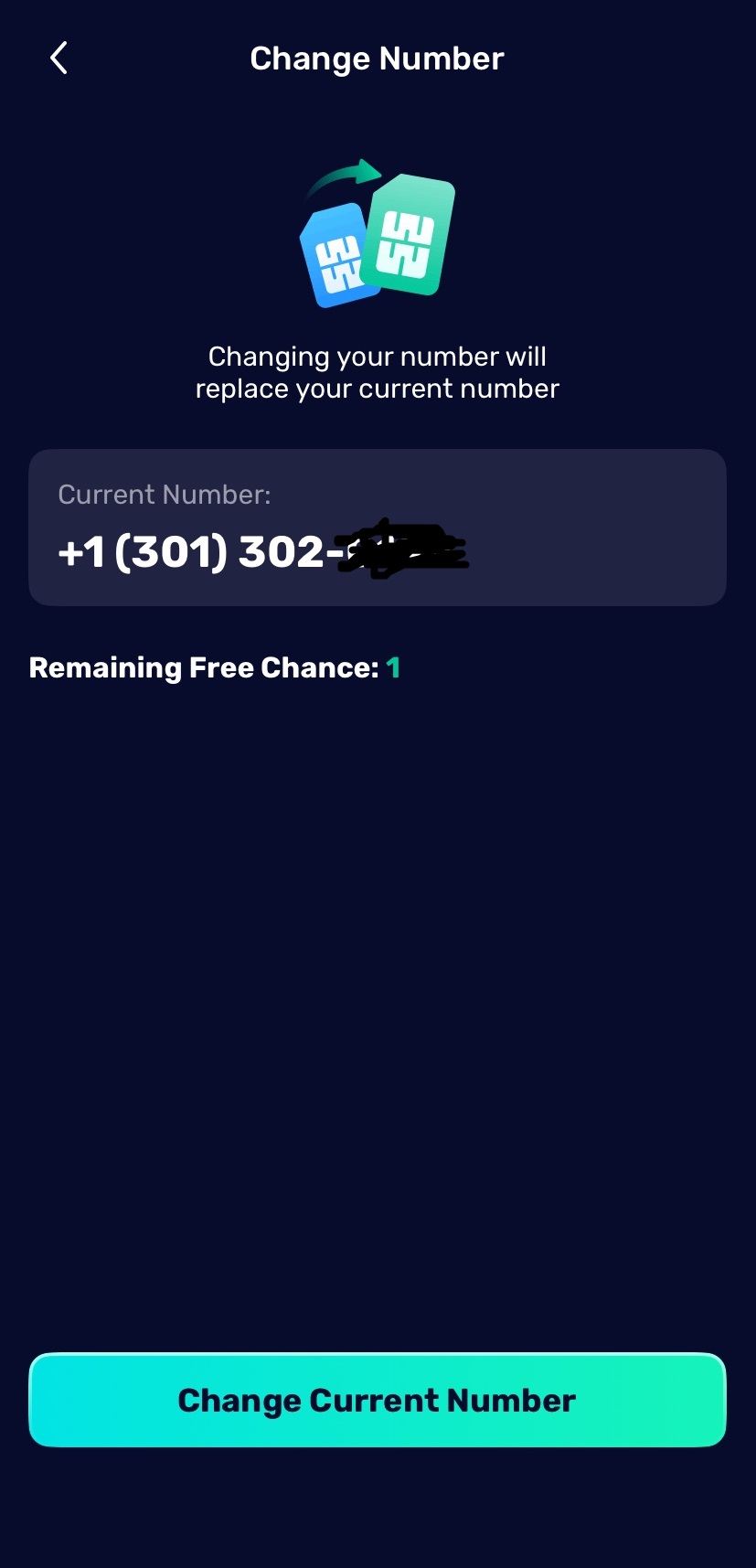
An AI Phone subscription includes a Second Number for work, travel, privacy, or international communication. This number can be changed once per month for free.
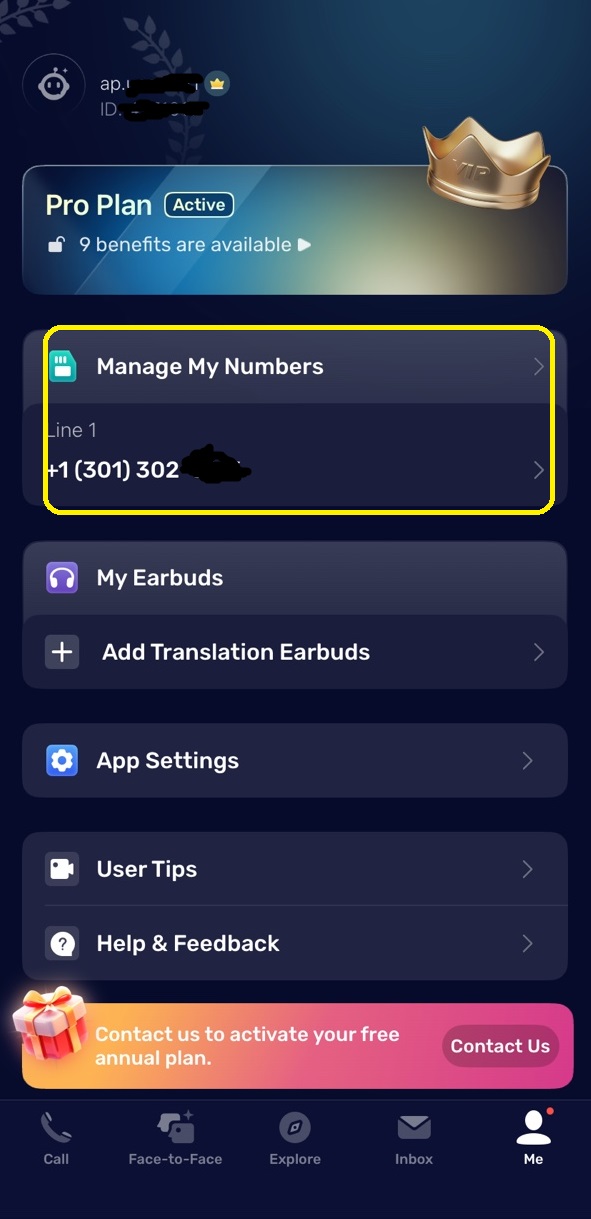
- Open AI Phone.
- Tap Me at the bottom of the app.
- Tap Manage My Numbers.
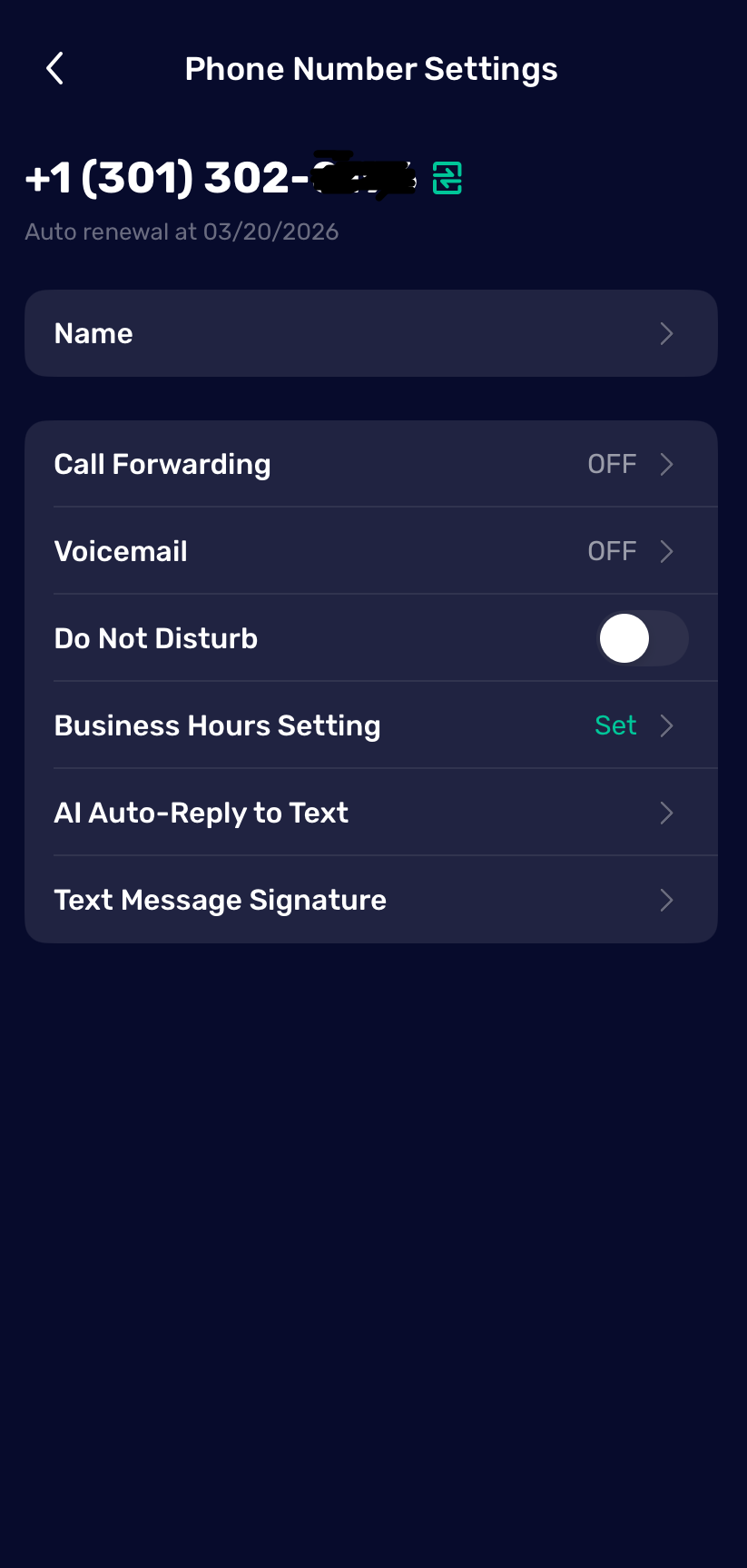
- Tap your second number to enter the Phone Number Settings screen.
From the Phone Number Setting screen, you can manage advanced features of the phone number. To replace the number, tap the green bidirectional arrow button in the top-right corner of the phone number screen and follow the on-screen instructions.
You can configure advanced features such as:
- Call forwarding
- Voicemail
- Business hours settings
- Text message signature
- Do Not Disturb
- AI Auto-Reply to Texts (AI Assistant automatically responds to incoming texts)

Use Smart Text Reply in Inbox
AI Phone includes Smart Text Reply tools in Inbox.
- Ask AI to generate a reply based on the conversation topic.
- Use Smart Reply Polish to improve a reply you have already written.
FAQs
What translation features does AI Phone support?
AI Phone supports phone call, video call, face-to-face voice, photo, text, screen, audio, video, and live stream translation.
Can AI Phone translate phone calls in real time?
Yes. AI Phone provides real-time voice translation and bilingual captions during supported phone calls.
Can AI Phone translate video calls?
Yes. AI Phone translates video and voice calls through a shareable call link. The other person can join without installing AI Phone.
Can AI Phone translate face-to-face conversations?
Yes. Face-to-face voice translation supports Listening Mode and Talk Mode for in-person conversations. AI Phone can also automatically recognize the other person’s language in supported conversations.
Can AI Phone translate audio, videos, and live streams?
Yes. Audio, Video, and Stream Translation can translate videos, podcasts, lectures, interviews, and live streams playing on your phone.
How many languages does AI Phone support?
AI Phone supports 150+ languages and accents across its translation features.
Can I use AI Phone without my phone number?
Yes. You do not need to link your personal phone number to use most AI Phone features. Number linking is only required for supported phone call settings that use your own number.
Should the other person install AI Phone for phone call and video call translation?
No. The other person does not need to install AI Phone for standard phone call translation or video and voice calls joined through a shared link.
Does AI Phone work offline?
Yes. Text Translation and Photo Translation support offline use after the required language resources are downloaded. Real-time translation features require an internet connection.