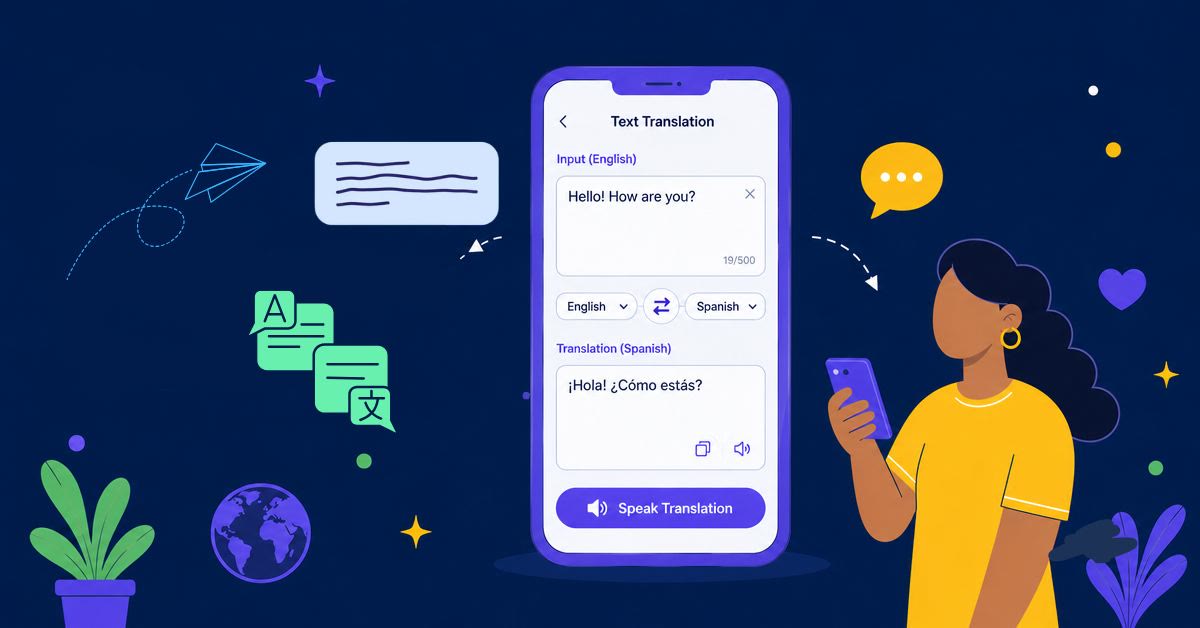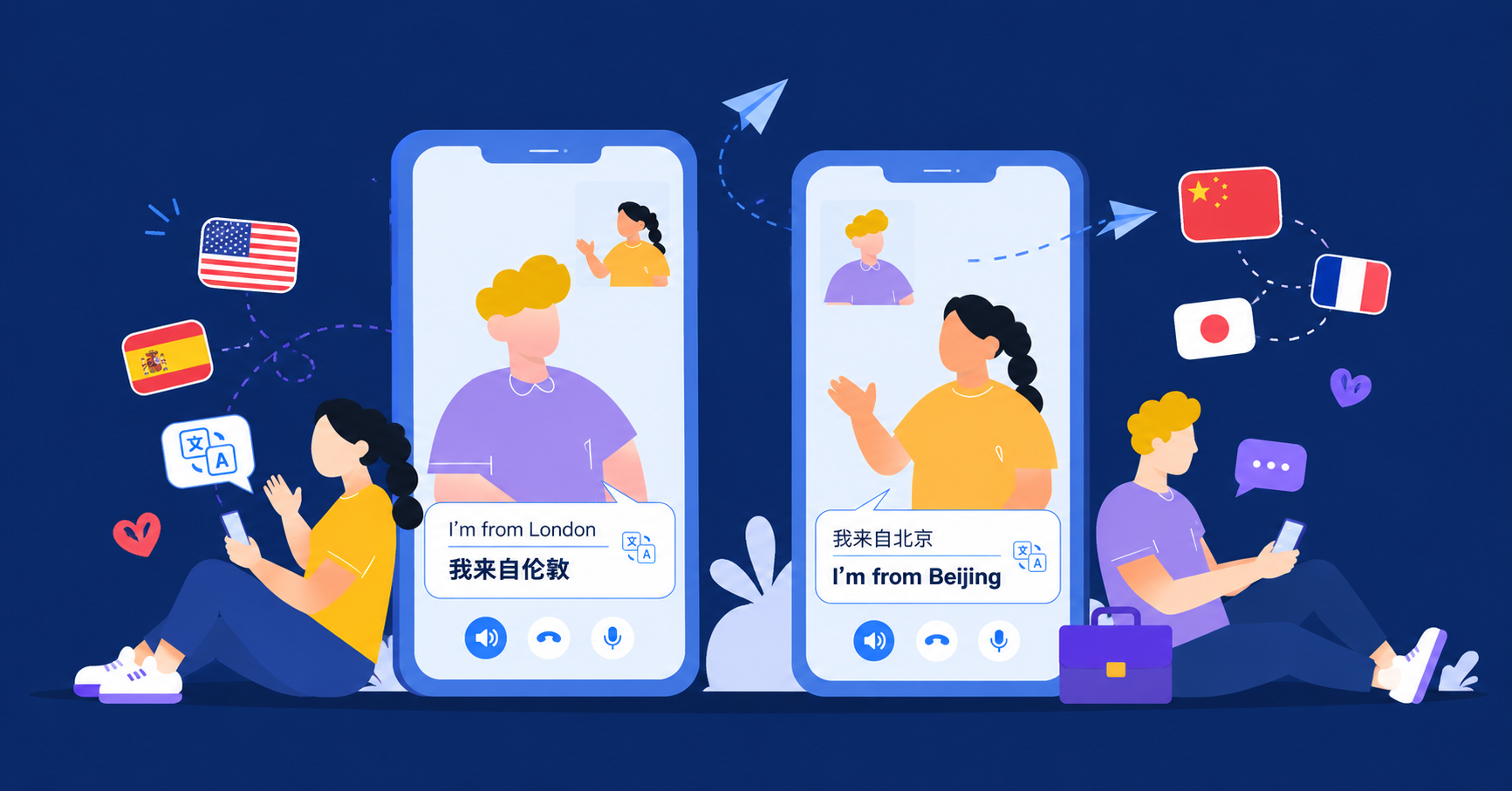
When you are traveling, shopping, reading paperwork, or trying to understand a screenshot in another language, typing every word into a translator is too slow. In moments like these, photo translation is often the easiest way to understand what you are looking at.
AI Phone helps you translate image text from your camera or saved photos, so you can get the meaning quickly and move on.
What Photo Translation Does
Photo translation reads text inside an image, recognizes the language, and translates it into the language you choose.
Voice translation is for what you hear, while photo translation is for what you see, from menus and signs to labels, documents, receipts, and screenshots.
This makes it useful when the text is printed, visual, saved as an image, or simply too inconvenient to type by hand.
Start Photo Translation in AI Phone
Use this flow when you want to translate text from a photo or camera capture.
- Open AI Phone.
- Tap Face-to-Face at the bottom of the app.
- Tap the camera button on the right side.
- Select the source language and target language at the bottom of the screen.
- Tap Photos to upload an existing image, or use the camera to capture new content.
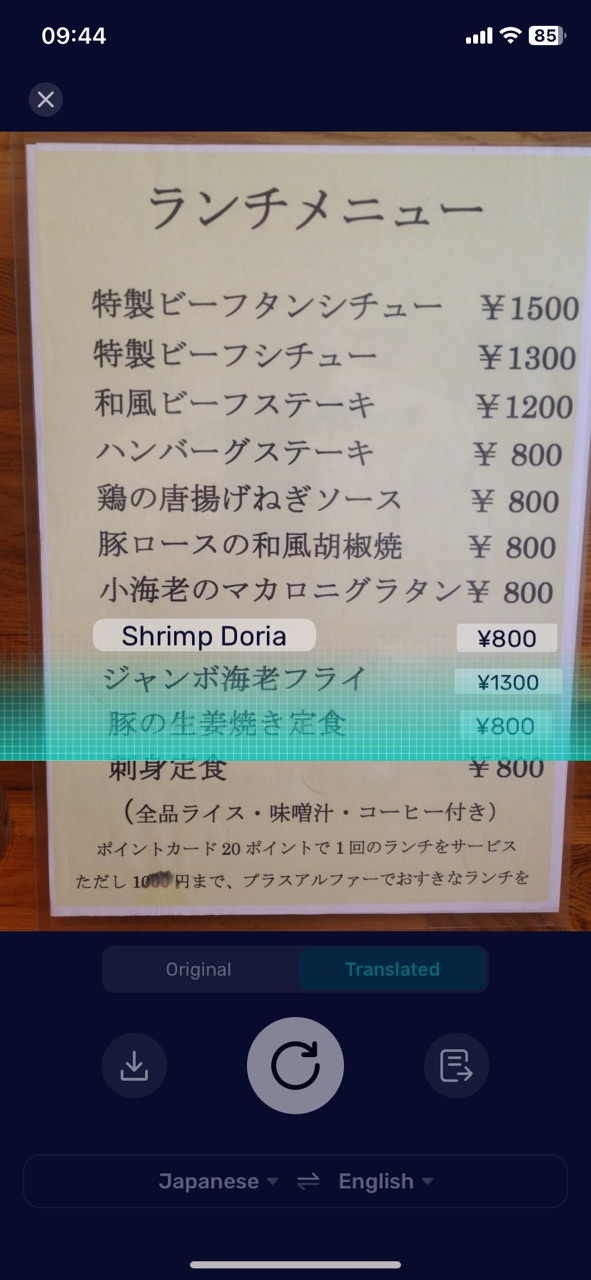
- AI Phone detects the text in the image and translates it.
Choose the Source and Target Languages
Before translating the photo, check the language settings at the bottom of the screen. The source language is the language shown in the image. The target language is the language you want to read. If you are not sure what language is in the photo, use automatic language recognition when available. This is helpful for signs, packaging, screenshots, or documents where you may not recognize the language at first glance.
Translate a New Photo with the Camera
Use the camera when the text is in front of you, such as a menu, sign, label, notice, form, or product package.
Hold your phone steady, keep the text inside the camera frame, and make sure the image is not too dark or blurry. If the text is small, move closer or zoom in before capturing it.
For long menus, posters, or multi-column documents, translate one section at a time. This usually gives cleaner text recognition than trying to capture too much at once.
Translate an Existing Photo from Your Device
Use Photos when the image is already saved on your phone.
This works well for screenshots, downloaded documents, travel confirmations, product labels, school materials, slides, and images someone sent you in a chat app. Upload the image, then let AI Phone detect and translate the text.
If the image contains a lot of small text, crop the image first so the important part is easier to read.
Best Use Cases for Photo Translation
Menus and Food Labels
Photo translation is useful when a restaurant menu, grocery label, ingredient list, or cooking instruction is in another language. Instead of typing each item manually, capture the menu or label and read the translated text on your phone.
Travel Signs and Notices
Use photo translation for airport signs, hotel notices, train station boards, museum instructions, local rules, and street signs. It is especially helpful when the text is short but important.
Documents and Forms
You can translate printed documents, forms, receipts, letters, manuals, and instructions. For important documents, use the translation to understand the content, then confirm legal, medical, or financial details with a qualified person when needed.
Screenshots and App Content
If you have a screenshot from a website, app, message, booking page, or social post, upload it through Photos and translate the text from the image.
For live content on your phone screen, screen translation may be a better fit.
Study and Work Materials
Photo translation can help with slides, worksheets, charts, printed notes, training materials, and presentation screenshots. It is useful when you need quick understanding before asking follow-up questions or preparing a reply.
Troubleshooting
The Text Is Not Detected Clearly
Retake the photo with better lighting and hold your phone steady. If the text is small, move closer or crop the image before translating.
The Translation Looks Incomplete
The photo may include too much text, mixed layouts, handwriting, or low-contrast text. Try translating a smaller area of the image.
The Wrong Language Is Selected
Check the source language at the bottom of the screen. If you are not sure what language the photo uses, switch to automatic language recognition if available.
Small Text Is Hard to Translate
Zoom in or crop the image so the text takes up more of the frame. This is especially useful for receipts, labels, medicine packaging, and screenshots.
FAQ
Can AI Phone translate text from photos?
Yes. AI Phone can translate text from saved photos and images, including menus, signs, labels, screenshots, documents, and slides.
Can AI Phone translate text with the camera?
Yes. You can open the photo translation feature, point your camera at the text, and capture the content for translation.
Does AI Phone automatically detect the language in a photo?
AI Phone supports automatic language recognition for photo translation when available, which helps when you do not know the source language.
What kinds of photos can I translate?
You can translate many types of photos and images, including menus, signs, product labels, packaging, screenshots, receipts, forms, documents, posters, and presentation slides.
Can Photo Translation work offline?
Yes. AI Phone’s Photo Translation supports offline translation for all supported languages.