The hardest part of a language barrier is often the moment someone is standing right in front of you. You hear the words, see their expression, and know you need to answer, but the meaning does not arrive fast enough.
This guide shows you how to use AI Phone for face-to-face voice translation when you need to understand and respond in real time.
Quick Answer: To translate a face-to-face conversation with AI Phone, open Face-to-Face and choose Listening Mode or Talk Mode. Select the languages you need, then start speaking. AI Phone translates the conversation in real time and shows translated captions.
- What Face-to-Face Voice Translation Does
- Which Voice Translation Mode Should You Use?
- Use Listening Mode
- Use Talk Mode
- Set Languages Before You Start
- Let Both People Read the Translation with Split Screen
- Review Translation History
- Best Use Cases for Voice Translation
- Tips for Better In-Person Translation
- Troubleshooting
- FAQ
What Face-to-Face Voice Translation Does
Unlike text translation, face-to-face voice translation is for live spoken conversations where you need to listen and respond in the moment.
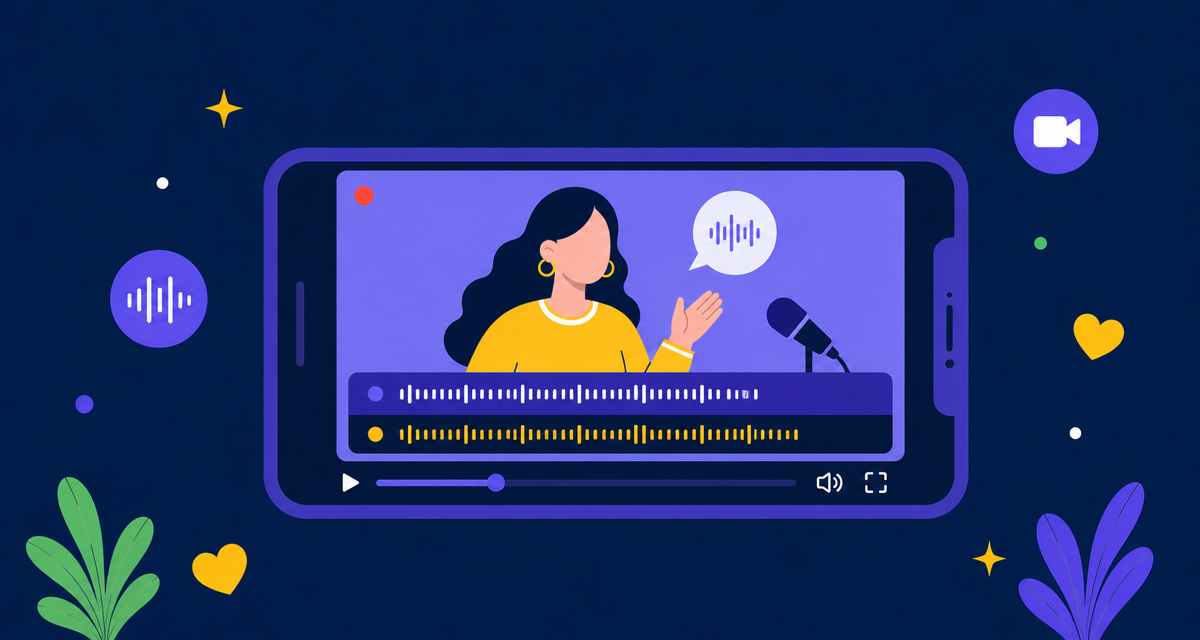
AI Phone’s Face-to-Face Voice Translation translates live conversations in real time and displays translated captions on your phone. Use Listening Mode when you mainly need to understand someone, or Talk Mode when both people need to speak and respond.
Which Voice Translation Mode Should You Use?
AI Phone has two main ways to handle in-person voice translation: Listening Mode and Talk Mode. Use Listening Mode when you mainly need to understand someone. Use Talk Mode when both people need to speak and respond.
| Mode | Best for | How it works |
|---|---|---|
| Listening Mode | Lectures, classes, meetings, seminars, presentations, or one-way explanations | AI Phone listens, transcribes, and translates what you hear |
| Talk Mode | Two-person conversations, travel, shopping, appointments, and live back-and-forth talks | Both people take turns speaking and reading or hearing translations |
If you mainly need to understand what someone else is saying, start with Listening Mode. If both people need to speak and respond, use Talk Mode.
Use Listening Mode
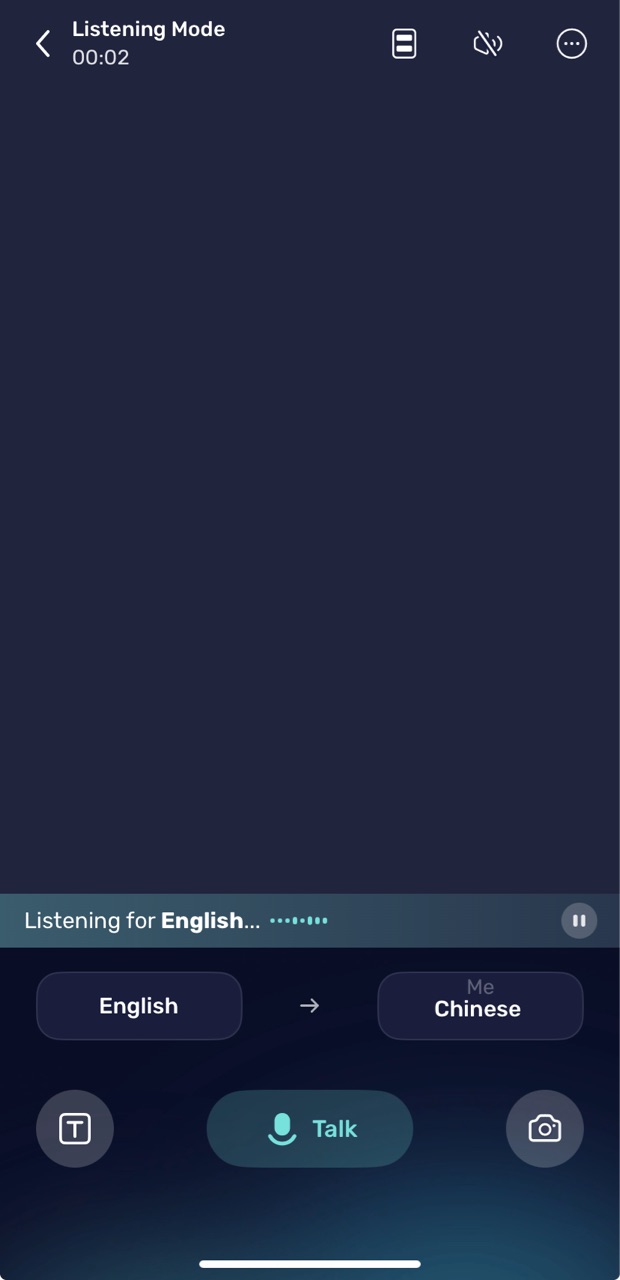
Listening Mode is best when you mainly need to understand what someone else is saying.
- Open AI Phone.
- Tap Face-to-Face.
- Stay in Listening Mode.
- Select your language.
- Turn translation reading on or off, depending on whether you want to hear the translation or only read subtitles.
- Let AI Phone listen and translate the speech in real time.
Listening Mode works well for classes, lectures, public talks, announcements, meetings, and situations where you do not need to interrupt often.
Use Talk Mode
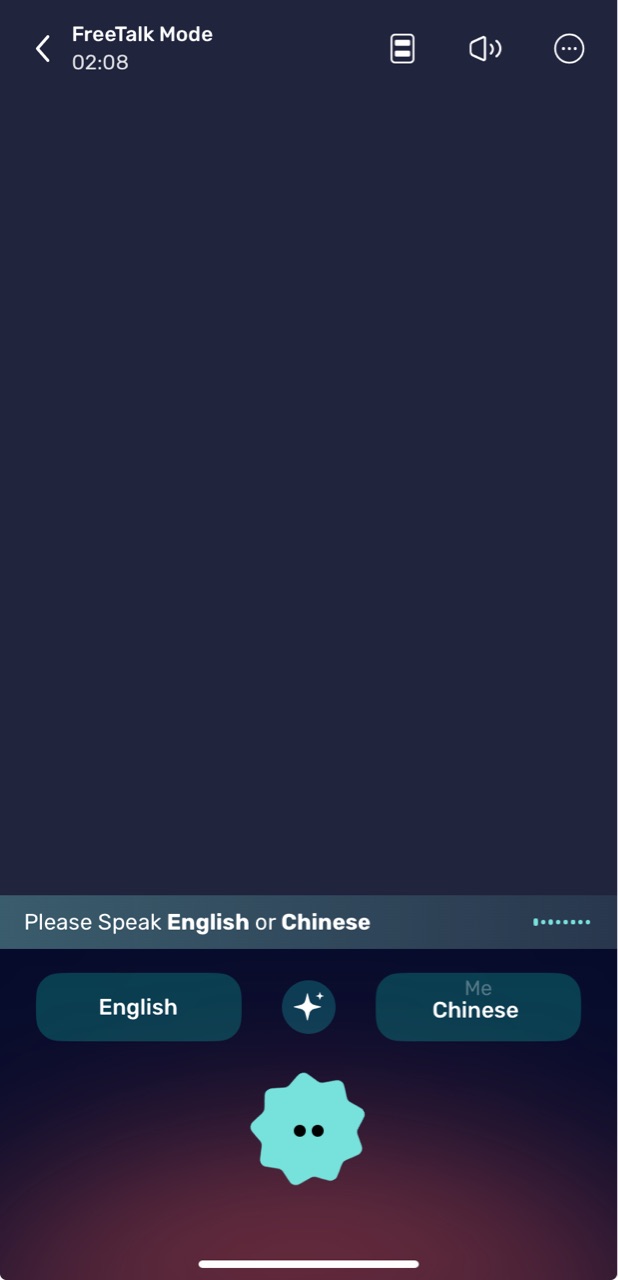
Talk Mode is designed for two-way conversations where both people need to speak, listen, and respond.
- Open AI Phone.
- Tap Face-to-Face.
- Tap Talk to switch to Talk Mode.
- Select the languages for both speakers.
- Press the talk button when someone speaks.
- Use Split Screen when both people want to read translations from opposite sides of the phone.
Talk Mode is useful for travel, shopping, appointments, family conversations, meeting new people, and any situation where both sides need to participate.
Set Languages Before You Start
Before using face-to-face voice translation, check the language settings. Choose the language you speak and the language you want to translate into before starting. AI Phone can also automatically recognize the other person’s spoken language when supported.
AI Phone supports 150+ languages and accents, so you can use it for common in-person conversations across English, Spanish, Chinese, French, Japanese, Korean, Portuguese, Arabic, and many more.
If the other person speaks with a strong regional accent or dialect, choose the closest available language option when needed and speak in short, clear sentences when possible.
Let Both People Read the Translation with Split Screen
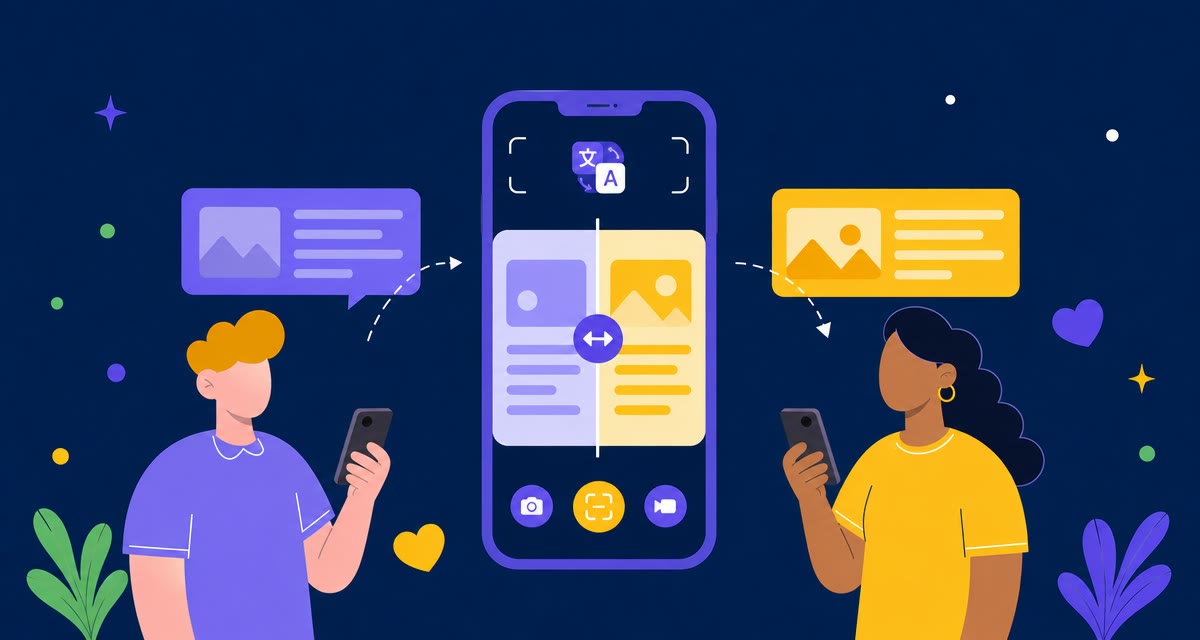
Split Screen lets two people read translated captions from opposite sides of the same phone, so you don’t need to pass the phone back and forth.
Use Split Screen when:
- You are talking across a counter.
- You are sitting across from someone at a table.
- You want both people to follow the conversation without passing the phone back and forth.
- The environment is too noisy to rely only on audio.
Review Translation History
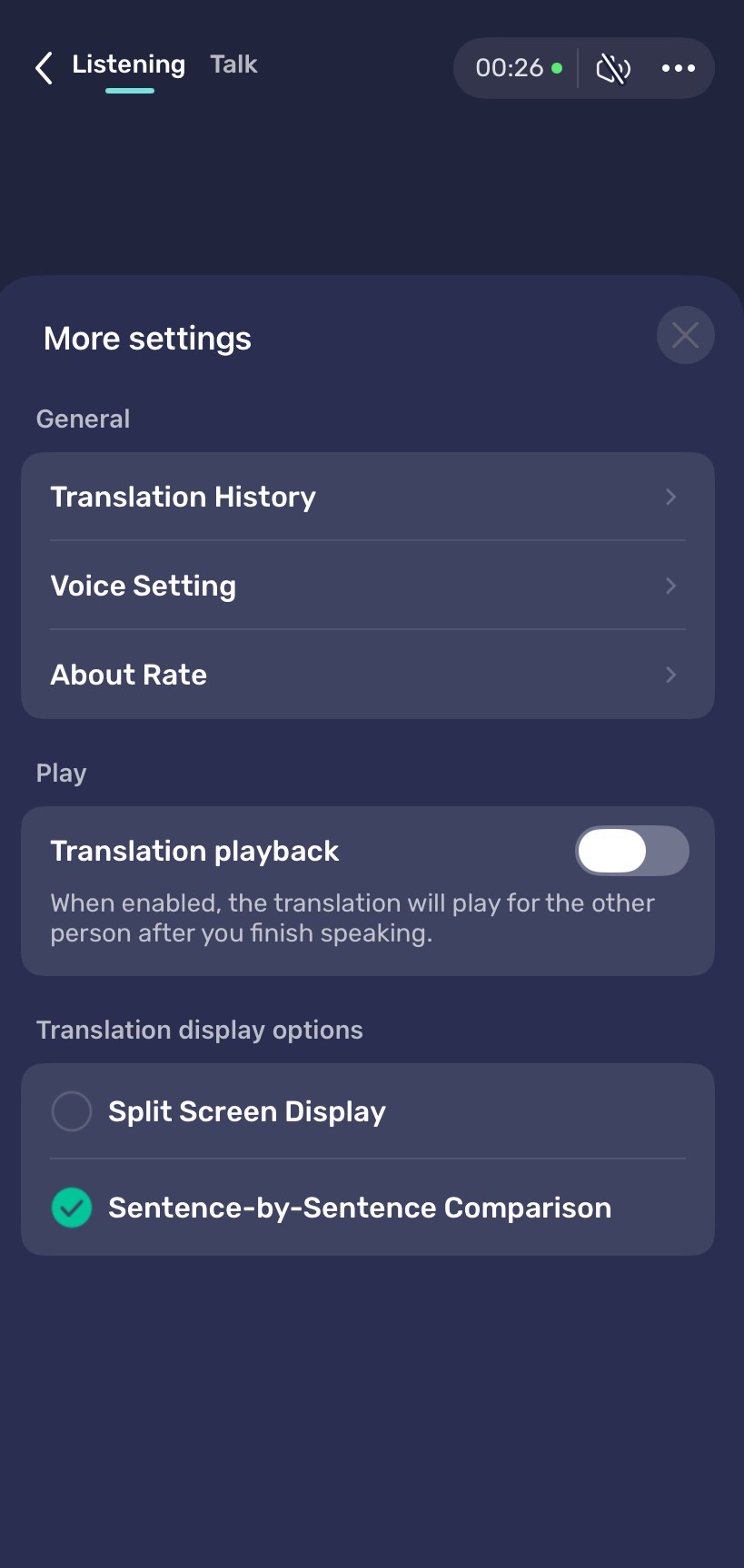
AI Phone saves your face-to-face voice translation records so you can go back and check important details later. This is useful when a conversation includes directions, appointment times, names, prices, addresses, or instructions you may need again.
To view your Translation History:
- Open the Face-to-Face Translation screen.
- Tap the three-dot menu in the top-right corner.
- Tap Translation History.
Best Use Cases for Voice Translation
Face-to-face voice translation is most useful when you are physically with someone and need to understand or answer right away.
- Travel: Use Talk Mode when asking for directions, checking into a hotel, speaking with taxi drivers, or getting help from local staff.
- Doctor Visits: For non-emergency medical appointments, use Talk Mode to follow instructions, explain basic symptoms, confirm times, or understand next steps. For urgent medical situations or legal interpretation, use qualified professional support when required.
- Classes and Lectures: Use Listening Mode when you mainly need to follow a teacher, lecture, seminar, or announcement.
- Shopping and Restaurants: Use Talk Mode to ask about prices, sizes, ingredients, menu items, or returns.
- Family and Friends: Use Talk Mode for everyday conversations with relatives, partners, or friends who speak another language.
When the conversation happens remotely instead of in person, AI Phone can also help you translate phone calls and video calls.
Tips for Better In-Person Translation
- Keep the phone close enough to hear both speakers.
- Speak one at a time.
- Pause briefly between ideas.
- Use Talk Mode for back-and-forth conversations.
- Use Listening Mode when you mainly need to understand.
- Turn on Split Screen when both people need to read.
- Move to a quieter spot when background noise is strong.
- Repeat or rephrase if a name, address, number, or important detail is not clear.
Troubleshooting
AI Phone Can’t Hear the Speaker
Check microphone permission and move the phone closer to the speaker. If the environment is noisy, try moving to a quieter place.
The Translation Is Delayed
Short delays can happen during live speech translation, especially when someone speaks quickly or does not pause. Ask the speaker to slow down or pause between sentences.
The Wrong Language Is Detected
Check the selected languages before continuing. AI Phone can automatically recognize the other person’s spoken language, but if the conversation includes mixed languages or a strong regional accent, you may need to adjust the language setting.
The Other Person Can’t See the Translation
Use Split Screen in Talk Mode or turn the phone so the other person can see the translated text clearly.
Names or Numbers Are Translated Incorrectly
Ask the speaker to repeat the detail slowly. For important names, addresses, codes, or numbers, confirm the translation before acting on it.
FAQ
Can AI Phone automatically recognize the other person’s language?
Yes. AI Phone can automatically recognize the other person’s spoken language during face-to-face voice translation, which is useful when you are not sure which language they are speaking.
What is the difference between Listening Mode and Talk Mode?
Listening Mode is designed for one-way listening, such as lectures and presentations. Talk Mode is designed for two-way conversations where both people need to speak and respond.
When should I use Listening Mode?
Use Listening Mode when you mainly need to understand what someone else is saying, such as in a class, lecture, meeting, presentation, or announcement.
When should I use Talk Mode?
Use Talk Mode when both people need to speak and respond. It is best for travel, shopping, appointments, family conversations, and everyday in-person talks.
Does AI Phone show captions during face-to-face translation?
Yes. AI Phone shows translated captions so you can read along while listening.
Can both people read the translation?
Yes. In Talk Mode, you can use Split Screen so both people can read translations from opposite sides of the phone.
Does AI Phone’s face-to-face voice translation work offline?
Real-time voice translation requires an internet connection.
How many languages does AI Phone support?
AI Phone supports 150+ languages and accents.
Does it work offline?
Real-time voice translation requires an internet connection.
Final Tip
If you are not sure which mode to use, start with Listening Mode when you mainly need to understand, and switch to Talk Mode when the conversation becomes two-way. For important in-person conversations, check both languages first and make sure the microphone can clearly hear the speaker.
For a broader walkthrough of AI Phone’s translation features, including phone calls, video calls, camera, screen, text, and audio translation, see the complete AI Phone user guide.