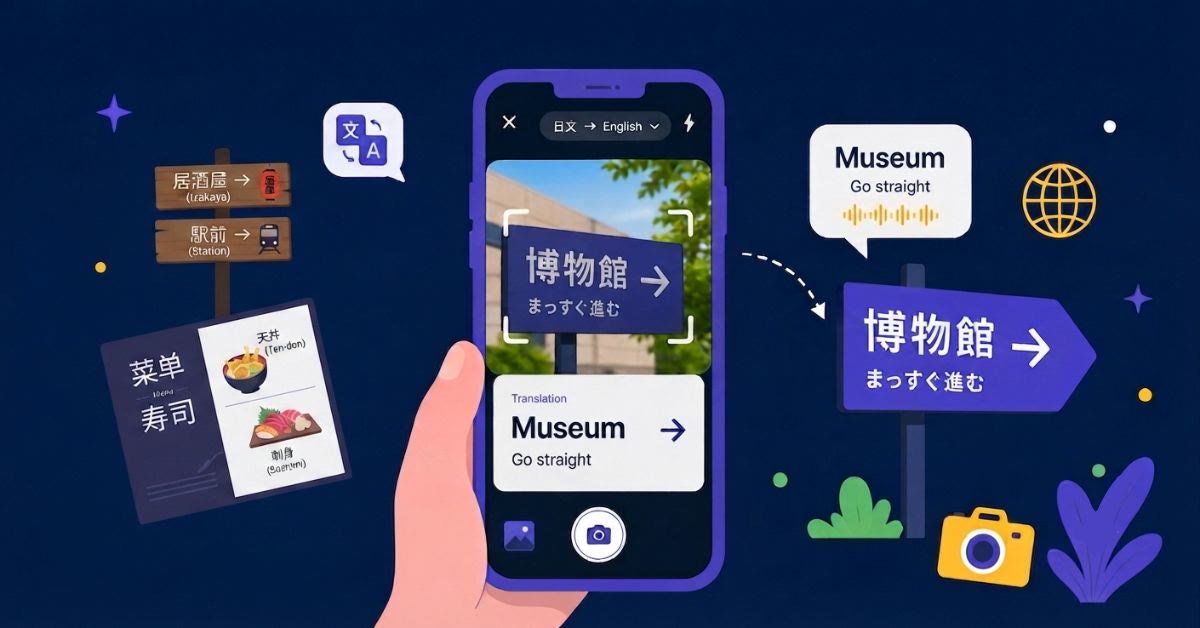
Some translations start with words you already have: a message you need to reply to, an address from a booking, a short note from school, or a phrase you want to say correctly. When the text is already typed or easy to copy, text translation is often the quickest way to get the meaning or prepare a response.
Here is how to use AI Phone text translation when you want to type or paste text directly.
Start Text Translation in AI Phone
Use this flow when you want to translate typed or pasted text.
- Open AI Phone.
- Tap Face-to-Face at the bottom of the app.
- Tap the T button on the left side.
- Choose the source language and target language.
- Enter or paste the text you want to translate.
- AI Phone translates the text into the language you choose.
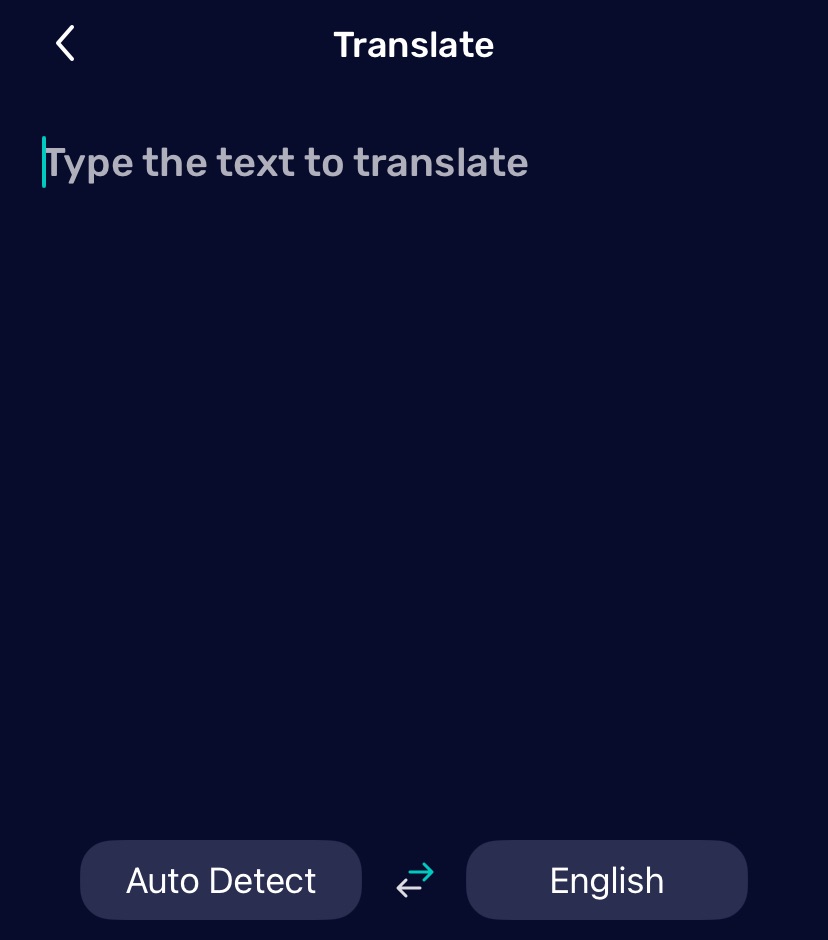
Choose the Source and Target Languages
Before translating, check both language settings.
The source language is the language of the text you enter. The target language is the language you want to read.
If you are not sure what language the original text uses, just paste it and AI Phone will automatically detect the language.
Enter or Paste the Text
Type the text directly or copy and paste the text. If the words are inside a photo, screenshot, menu, label, or document image, use photo translation instead.
View Translation History
AI Phone saves text translation history in the same place as Face-to-Face Voice Translation history.
- Open the Face-to-Face Translation screen.
- Tap the three dots in the top-right corner.
- Tap Translation History.
- Tap Text to review your previous text translations.
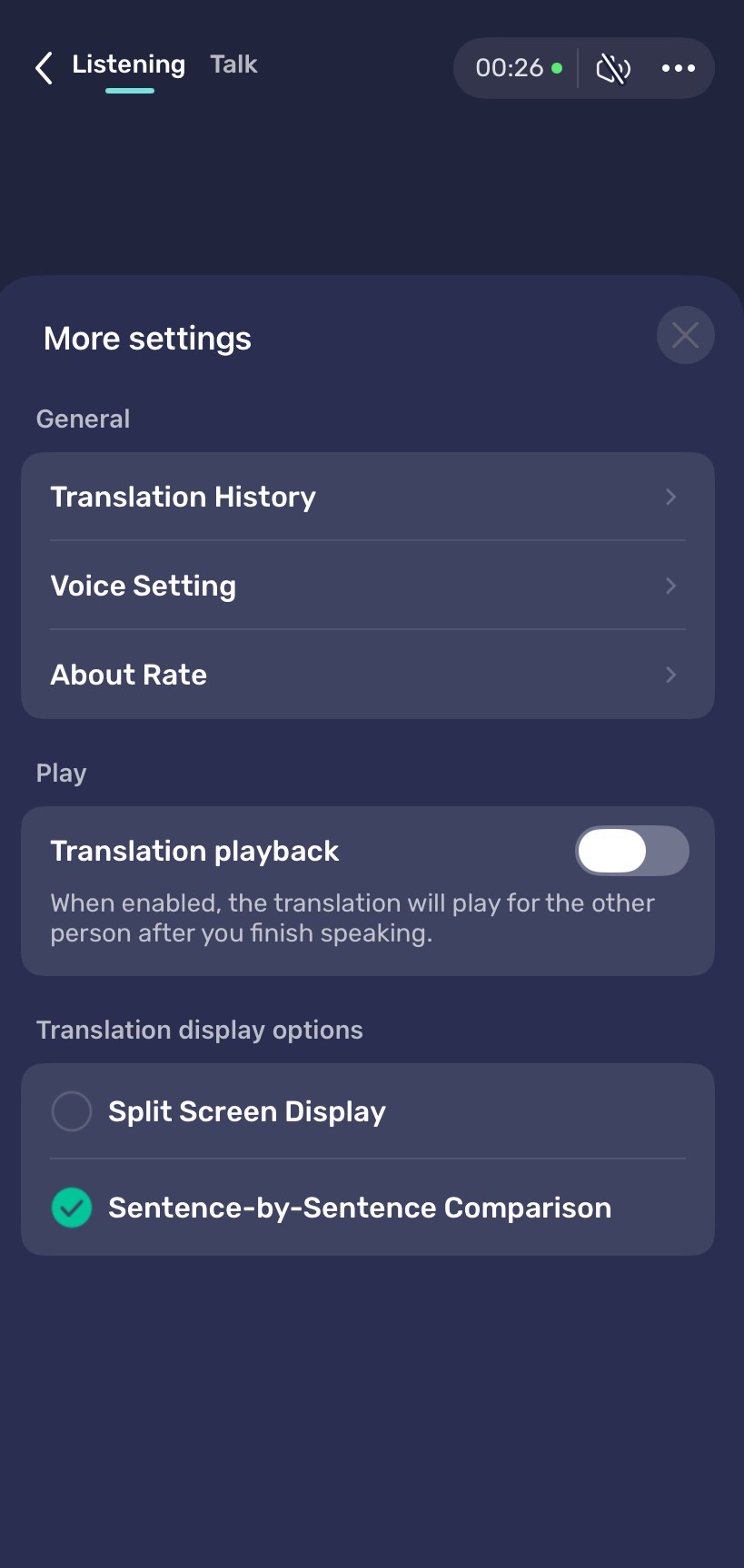
This is useful when you need to check a past phrase, reuse a translated reply, or confirm details such as names, addresses, dates, and numbers.
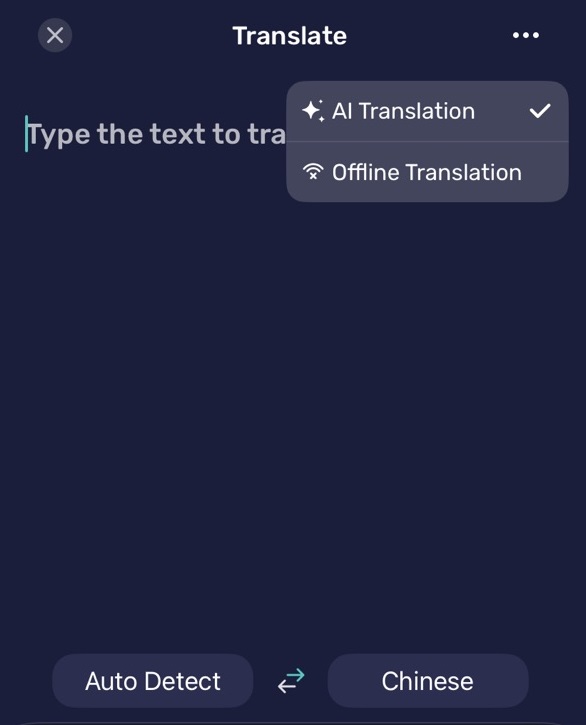
Use Offline Translation
Text Translation also supports offline translation for all supported languages. English can be used offline without downloading an additional language pack. Other languages require their language packs to be downloaded first. Use it when your connection is weak, mobile data is limited, or you want to translate simple text without relying on the network.
- Open the Text Translation screen.
- Tap the three dots in the top-right corner.
- Switch to Offline Translation.
- Enter or paste your text to translate.
- Tap AI Translation to switch back to online translation.
FAQ
Can AI Phone translate typed text?
Yes. You can type text into AI Phone and translate it into another language.
Can I upload files into AI Phone to translate the text?
No. AI Phone’s Text Translation only supports typping or pasting text now.
Can Text Translation work offline?
Yes. AI Phone’s Text Translation supports offline translation for all supported languages.