Video calls are where language barriers feel the most immediate. You can see the other person waiting, hear the pause after every sentence, and still worry that you missed the real meaning. It gets harder when the call is with a client, a teacher, a doctor, a landlord, or someone you care about.
Video call translation is still not built into every app people use every day. Some platforms offer translated captions for meetings, some features only work inside specific devices or paid plans, and WhatsApp still does not provide built-in real-time translation for voice or video calls.
AI Phone works differently: it uses a shareable call link for real-time video call translation. This guide shows you how to translate a video call with AI Phone.
Quick Answer: To translate a video call with AI Phone, open Call, tap the Video Call icon, choose the app for sharing the call link, set both languages, and tap Call Now. Share the generated link with the other person, who can join without installing AI Phone.
What Video Call Translation Does
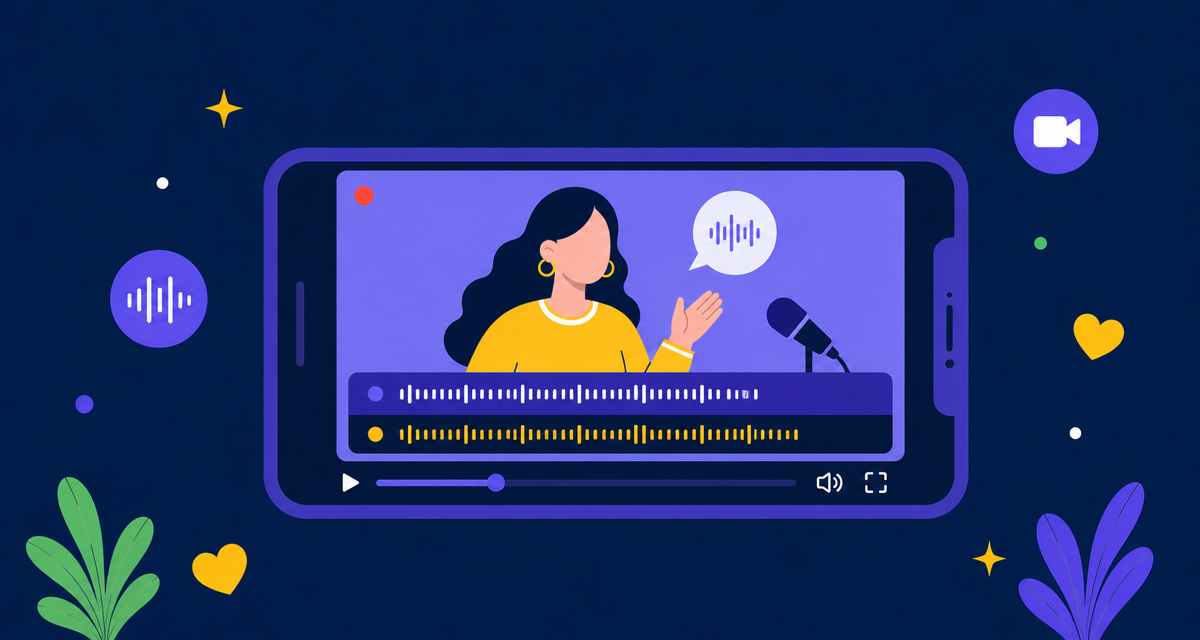
Video call translation helps two people speak different languages during the same live call. AI Phone translates spoken conversation in real time and shows bilingual captions, so both sides can follow the text on screen.
This is different from translating a recorded video. The goal is to keep a live conversation moving while both people speak naturally in their own language.
AI Phone supports video call translation across major social and communication apps. In the steps below, we’ll use WhatsApp as the example app.
Start Video Call Translation in AI Phone
Start the call from AI Phone first, then choose the app you want to use for sharing the call link.
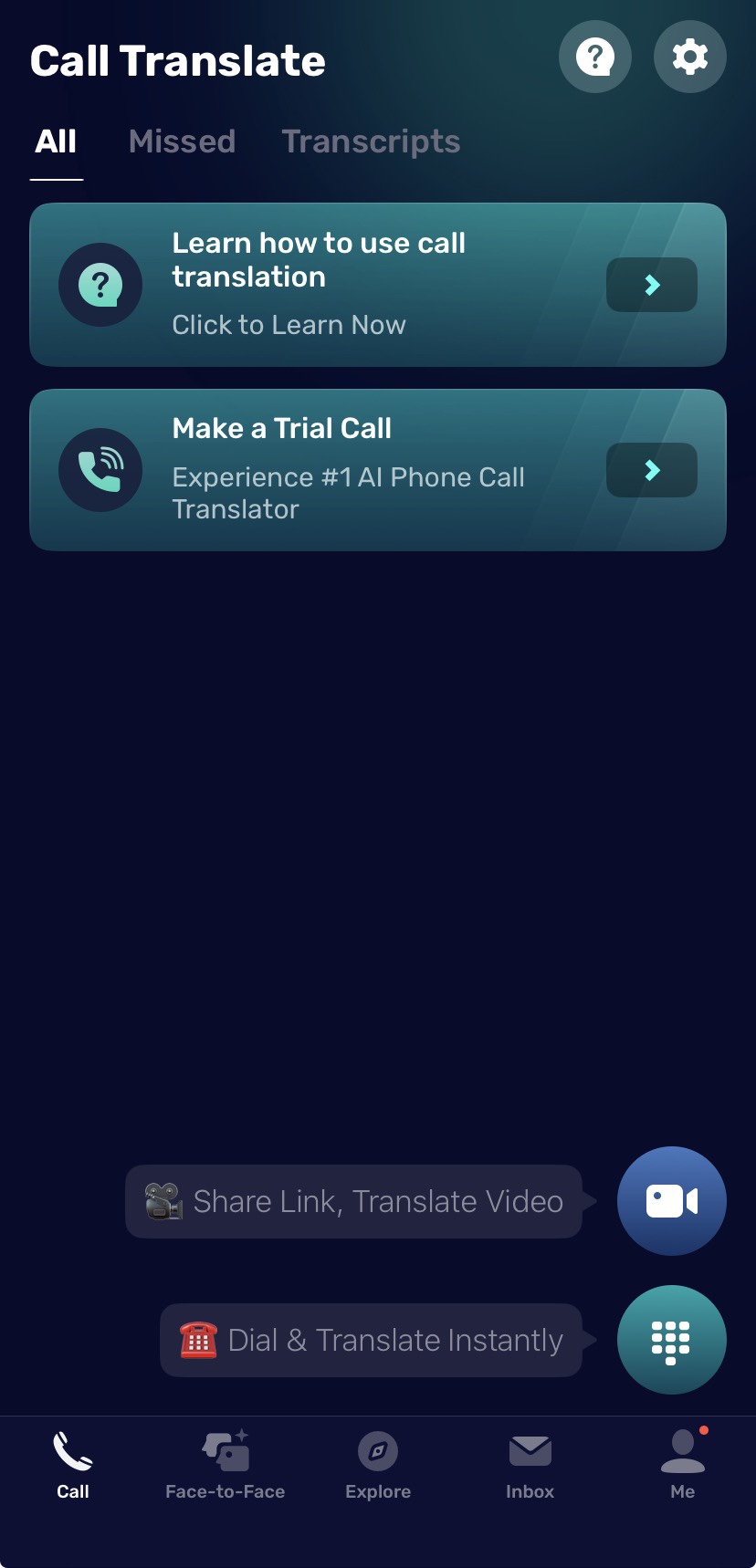
- Open AI Phone.
- Tap Call.
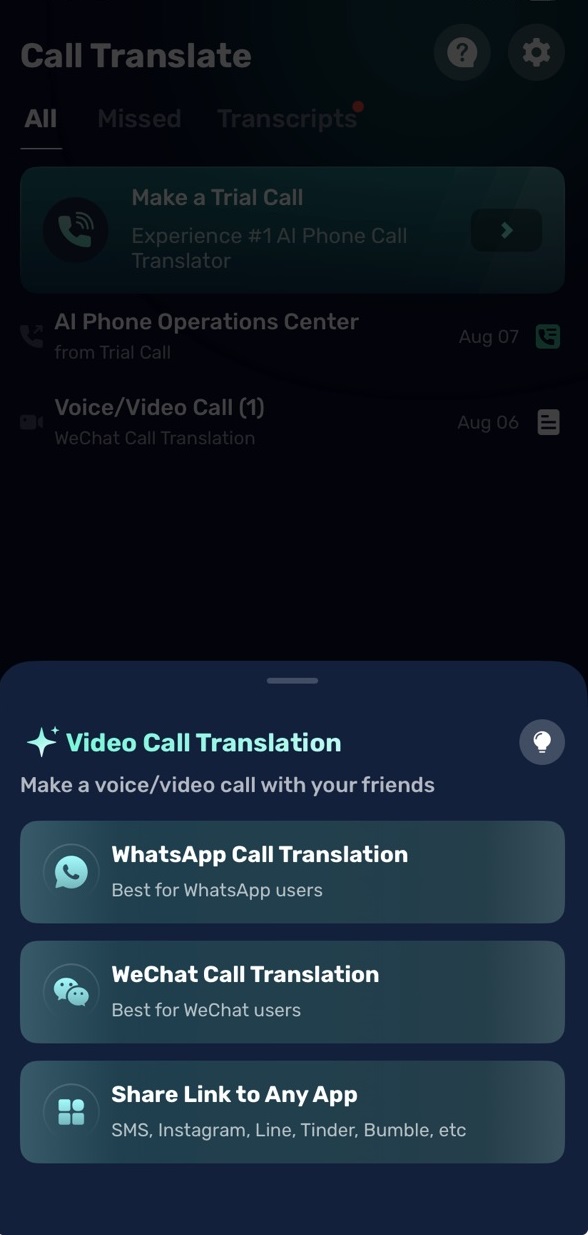
- Tap the Video Call icon.
- Choose the app you want to use. For this guide, choose WhatsApp.
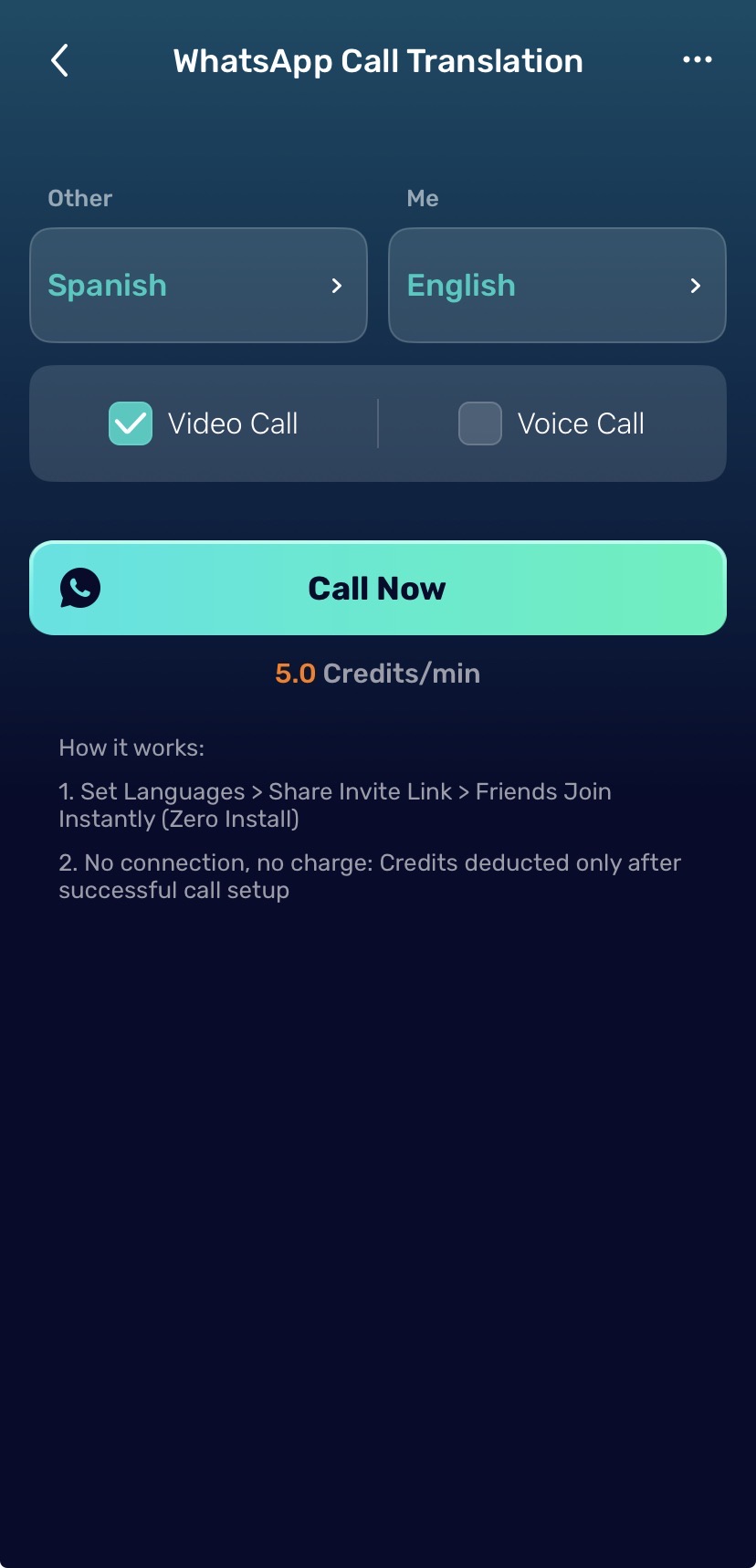
- Set your language.
- Set the other person’s language.
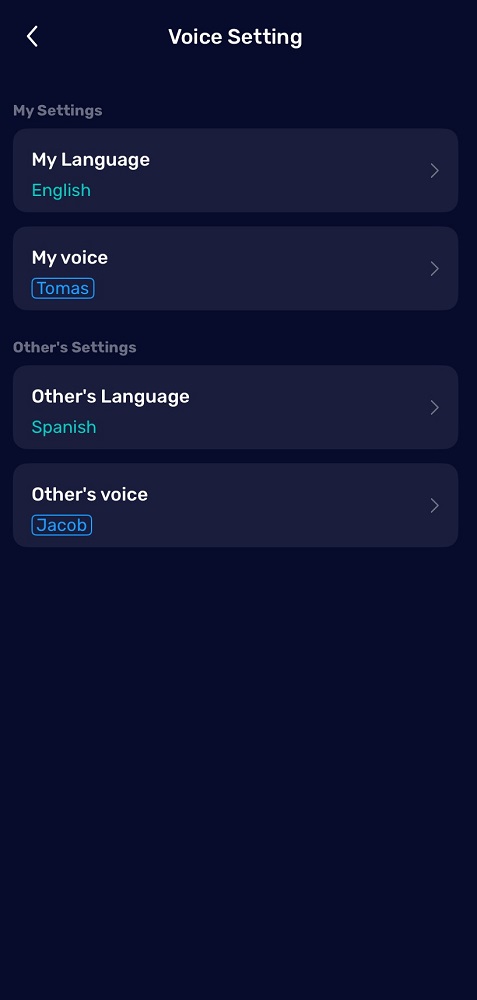
- Set your voice and the other’s voice.
- Choose Video Call.
- Tap Call Now.
- Share the call link through WhatsApp.
- Ask the other person to open the link and join the call.
Once the other person joins, AI Phone starts translating the conversation with voice translation and bilingual captions.
Set Both Languages and Voice Before the Call
Before starting the call, check the language settings for both sides.
Under Me, choose the language you will speak. Under Other, choose the language the other person will speak.
After setting both languages, choose the translated voice for each side by tapping the three-dot menu in the top-right corner. For casual calls, pick a voice that feels natural and easy to listen to. For work calls, online classes, appointments, or customer conversations, choose a clear voice and speak in shorter sentences so the translation can play smoothly.
Choose Video Call or Voice Call
AI Phone lets you choose between Video Call and Voice Call before sharing the link. Use Video Call when seeing the other person matters, such as family conversations, remote meetings, online classes, medical appointments, or customer calls.
Use Voice Call when camera is not needed or the connection is not strong enough for video. The setup flow is similar, and AI Phone can still translate the spoken conversation in real time.
Share the Call Link
After you tap Call Now, AI Phone creates a call link. Send that link through WhatsApp to the person you want to call.
The other person can open the link and join a translated video call or voice call. They do not need to install AI Phone just to join the translated call.
This link-based setup is useful when the other person uses a different phone, does not want to install another app, or simply needs to join quickly.
What the Other Person Needs to Do
The other person only needs to open the link and speak naturally.
- Open the link from WhatsApp.
- Speak naturally in their own language.
During the Call
During the video call, AI Phone translates the conversation as each person speaks. You can listen to the translated voice and read bilingual captions on screen.
For smoother translation:
- Speak in complete sentences.
- Pause briefly between ideas.
- Avoid talking over the other person.
- Keep names, addresses, and numbers short and clear.
- Use a quiet environment when possible.
- Check that microphone and camera permissions are enabled before the call starts.
Best Use Cases for Video Call Translation
Video call translation is most useful when you need live conversation, facial expression, and context at the same time.
Family and Personal Calls
Use video call translation to talk with relatives, partners, or friends who speak another language. Bilingual captions help both sides keep up when names, dates, or details are easy to miss.
Cross-Language Relationships
When two people care about each other but do not share the same first language, small conversations can matter a lot. Video call translation helps cross-border and multilingual couples talk more freely, from everyday check-ins to meeting each other’s family or making plans together.
International Work Calls
For remote teams, client updates, supplier conversations, or customer calls, video call translation helps both sides stay in the same conversation without waiting for someone to translate afterward.
Online Classes and Study Sessions
Students and teachers can use video call translation for tutoring, language learning, study groups, and cross-border classes where real-time understanding matters.
Travel, Housing, and Local Services
Use AI Phone when you need a video call with a hotel, landlord, clinic, school, or local service provider and the other person does not speak your language.
Cross-Border Customer Support
Video call translation can help support teams explain steps, confirm details, and keep a more human conversation with customers in different languages.
Troubleshooting Video Call Translation
The Other Person Cannot Join the Call
Ask them to open the link and check their internet connection. If WhatsApp opens the link inside an in-app browser and the call does not load correctly, they can copy the link and open it in their main browser.
Captions Are Delayed
Short delays can happen when the network is unstable or both people speak at the same time. Ask each person to pause briefly between sentences and avoid background noise.
The Wrong Language Is Detected
Check the language selected under Me and Other before starting the call. If the conversation includes mixed languages, choose the main language each person will use.
Video Quality Is Poor
Switch to a stronger Wi-Fi or mobile network. If the connection remains unstable, use the voice call option instead of video call.
FAQ
Can AI Phone translate WhatsApp video calls?
AI Phone can help you translate video calls using a shareable call link sent through WhatsApp. It does not translate inside a native WhatsApp call. You start the translated call in AI Phone, share the link through WhatsApp, and the other person joins to start a translated vido call.
Can WhatsApp translate video calls itself?
No. WhatsApp does not currently provide built-in real-time translation for voice or video calls. It can support message translation in some cases, but live call translation is different.
Does the other person need to install AI Phone?
No. The other person can join from the shared link without installing AI Phone.
Can AI Phone translate voice calls too?
Yes. When setting up the call, you can choose Video Call or Voice Call. Voice call translation follows a similar setup.
Does video call translation show captions?
Yes. AI Phone supports bilingual captions during video call translation, so both sides can read along while listening to the translated voice.
Which apps does AI Phone support?
AI Phone supports major social and communication apps, including WhatsApp, WeChat, Telegram, Facebook Messenger and LINE.
Can AI Phone translate group video calls?
AI Phone video call translation is designed for one-on-one translated calls. Group video calls or conference calls are not supported in this setup.
Is my video call conversation private?
AI Phone is designed with user privacy in mind. Call audio and video are processed in real time and not stored on our servers after the call ends.
Final Tip
For your first translated video call, start with a short test call. Choose WhatsApp as the sharing app, set both languages, send the call link, and confirm that the other person can hear the translated voice and see bilingual captions before using it for an important conversation.